
Which platform are you using?
Let's troubleshoot XLKitLearn on your PC
- Close Excel completely.
- Reopen Excel directly. Do not open it by opening a spreadsheet; start Excel on a blank workbook instead.
-
In the Home tab of the ribbon, click the XLKitLearn icon.

- If XLKitLearn loads successfully, open the spreadsheet you were originally trying to use.
Did this work?
Clear the Office add-in cache on your PC
If restarting did not help, follow these steps in Excel.
-
Click File at the top of the ribbon.

-
Click Options at the bottom-left hand corner of the screen.

-
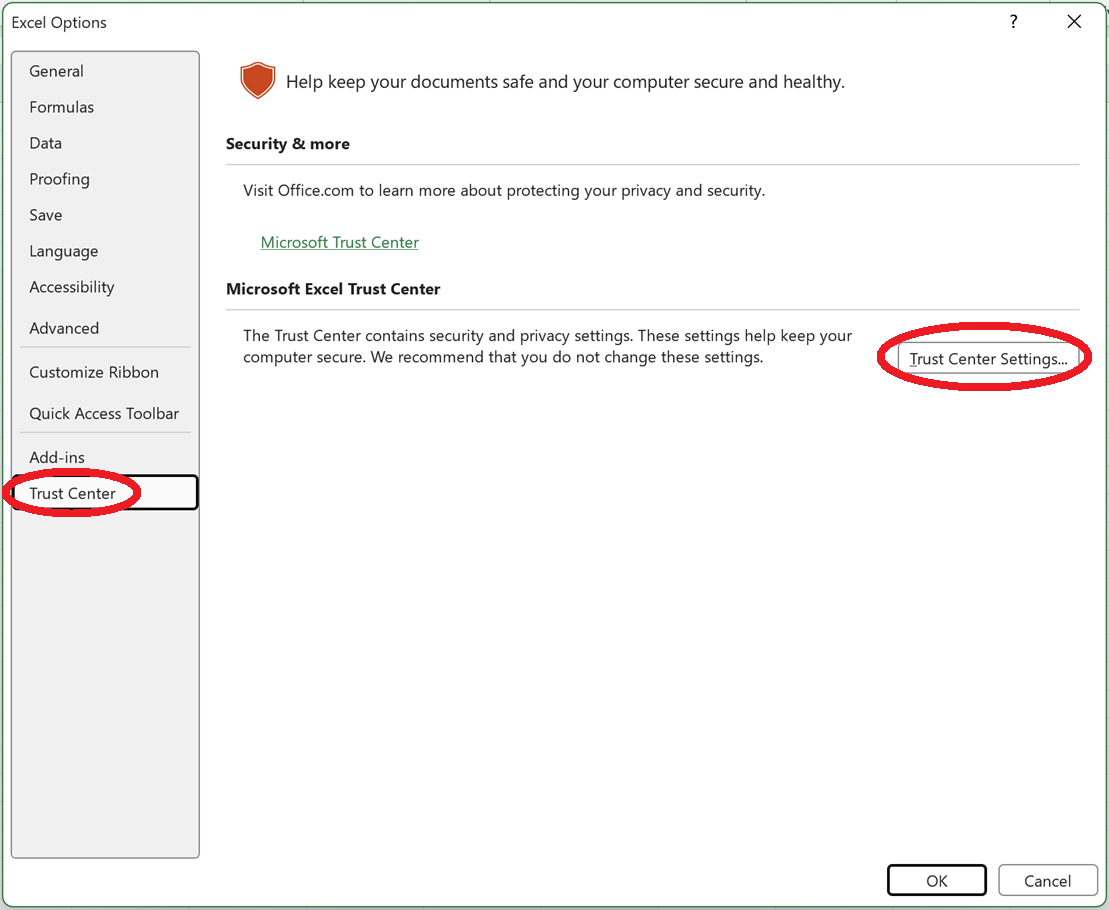
Click Trust Center, then click Trust Center Settings.
-
Click Trusted Add-in Catalogs, then select Next time Office starts, clear all previously-started web add-ins cache.
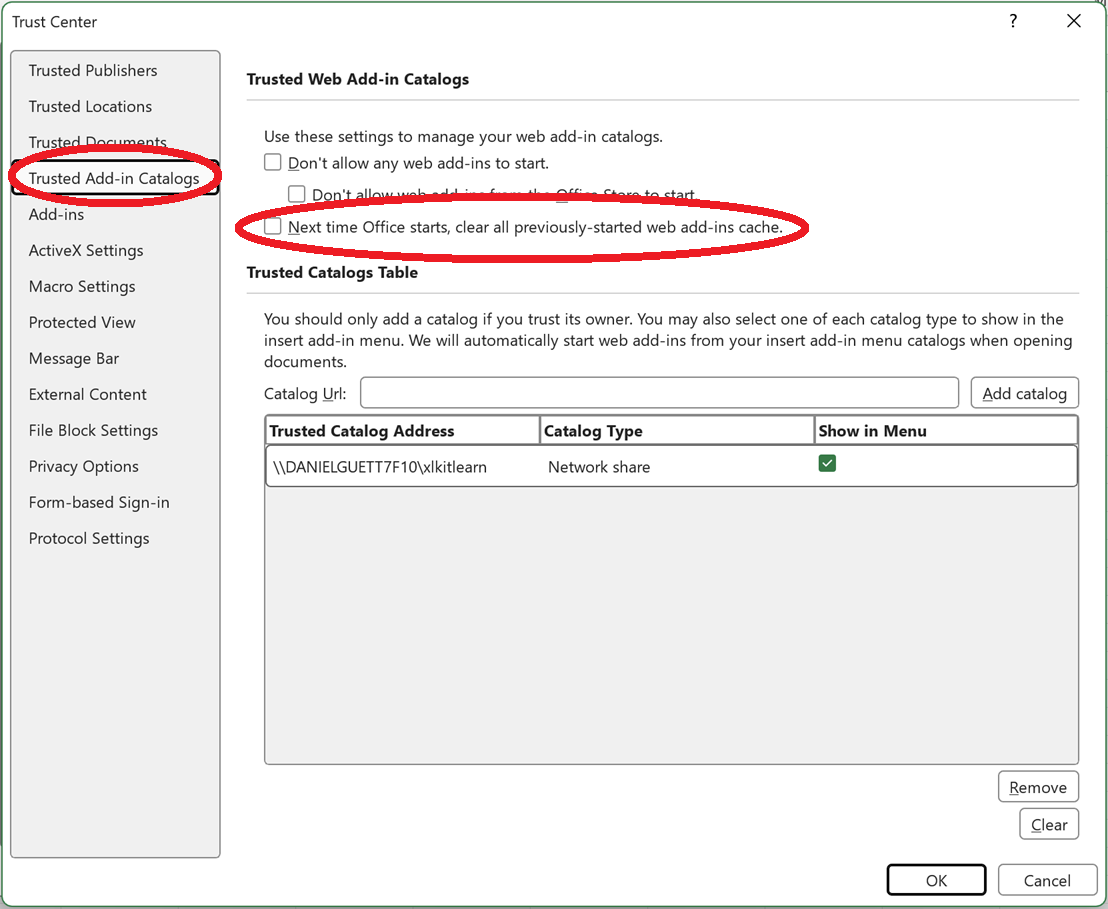
- Click OK twice, completely close Excel, and restart it.
First, restart XLKitLearn on your Mac
-
Close Excel completely by right-clicking the Excel icon in the Dock and selecting Quit.

- Reopen Excel directly. Do not open it by opening a spreadsheet; start Excel and open a blank workbook instead.
- In the Home tab of the ribbon, click the XLKitLearn icon.
- If XLKitLearn loads successfully, open the spreadsheet you were originally trying to use.
Did this work?
Clear the Office add-in cache on your Mac
If restarting did not help, use Terminal to remove the cached add-in files.
-
Close Excel completely by right-clicking the Excel icon in the Dock and selecting Quit.
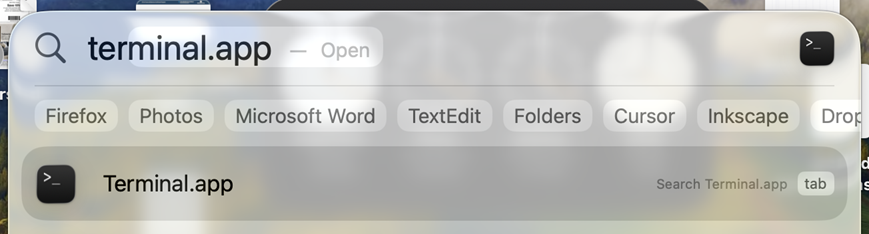
- Open Spotlight Search by pressing Command + Space, or click the magnifying glass at the top right of your screen.
-
Type Terminal, and double click on the terminal.
-
In the window that pops up, paste the commands below and press Return.
Safety warning: Never paste commands from a source you do not trust into Terminal. Terminal commands can change or delete files on your computer.
Press the button below to copy this code, paste it into your terminal, and press Return. You may be asked for various permissions, which you should grant.
rm -rf ~/Library/Containers/com.microsoft.Excel/Data/Library/Caches/
rm -rf ~/Library/Containers/com.microsoft.Excel/Data/Library/Application
rm -rf ~/Library/Containers/com.microsoft.Office365ServiceV2/Data/Caches/com.microsoft.Office365ServiceV2/
rm -rf ~/Library/Containers/com.microsoft.Office365ServiceV2/Data/Library/Caches/com.microsoft.Office365ServiceV2/
rm -rf ~/Library/Containers/com.microsoft.Excel/Data/Library/Application\ Support/Microsoft/Office/16.0/Wef/
Great! Glad it worked.