Many thanks to (in alphabetical order) Mateo Abella, Hugo Cayssials, Kevin McNicholas for co-authoring this manual with me. Their help was invaluable in making this happen.
Introduction
Using this guide
This guide contains one section for each of the add-in's key functionality areas, followed by a reference guide to all the Excel functions available in the add-in.
Looking to quickly get started? Each section starts with a "quickstart" guide.
→
Looking for a specific excel function? Use the search box in the table of contents on the left.
XLKitLearn is compatible with Excel for Windows, Mac, and the web. In Excel, open Home → Add-ins → More Add-ins, search for XLKitLearn, and add it to your workbook.
Fit and compare predictive models, evaluate their performance, and score new observations directly from Excel.
Quickstart
→
Are you currently taking CBS's Business Analytics core class? That class does not use XLKitLearn's Predict module—instead, it directly uses XLKitLearn's machine-learning prediction functions. Click here for details.
Imagine you run a pizza shop and want to give customers more accurate delivery estimates. In this quickstart, you'll use XLKitLearn's Predict module to learn from 100 completed orders and estimate delivery times based on distance, order size, rain, time of day, and driver experience. Along the way, you'll train and evaluate a model, then use it to predict delivery times for new orders. Follow along with the steps below...
→→→→→→→→→→
Step 1 of 11
Loading screenshot…
Open
Open the Predict tab
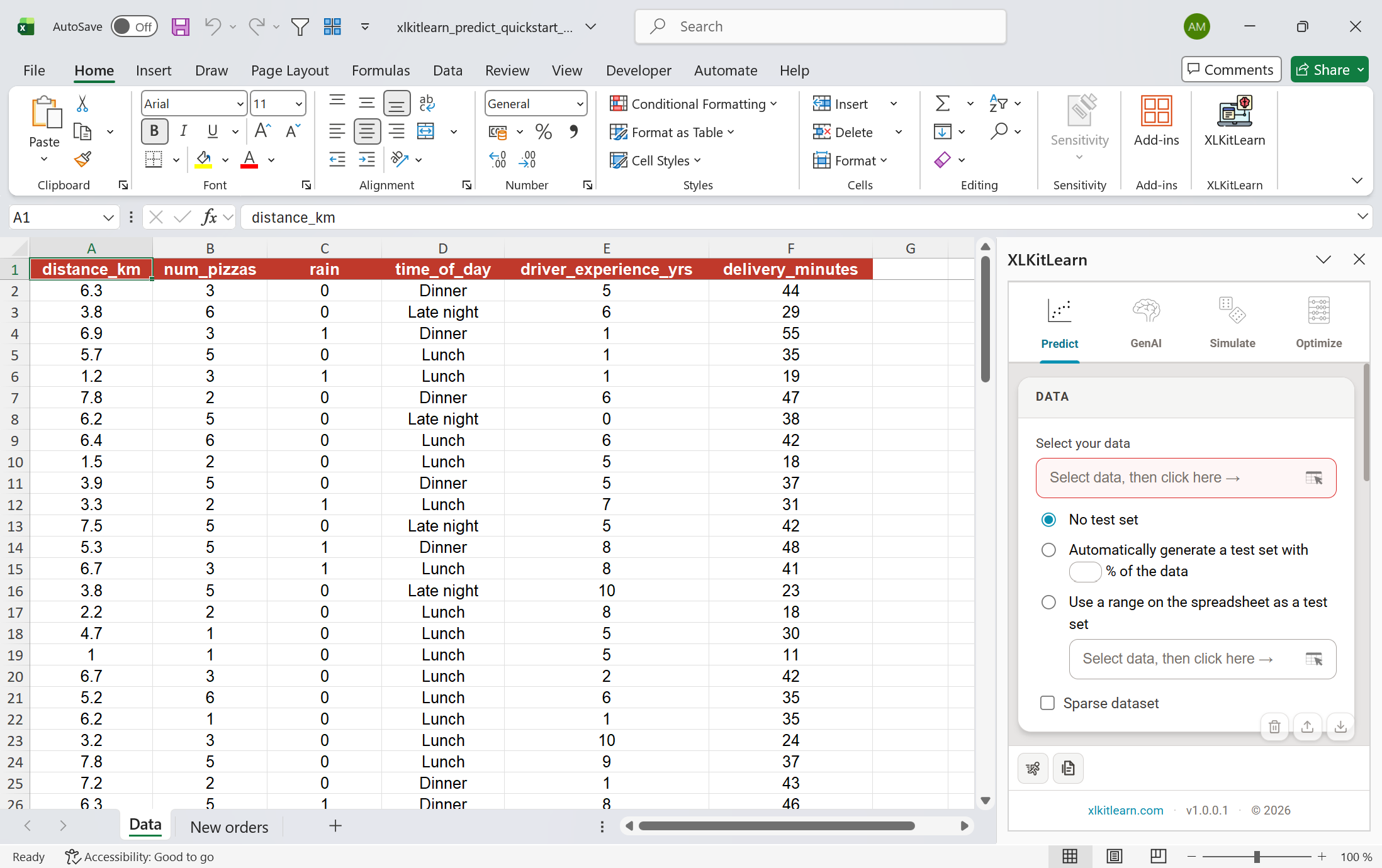
Download the sample workbook by clicking here, and open it. The "Data" tab contains the 100 completed pizza orders we will use to predict delivery times (the last column). Each row represents one completed order; each column describes that order, such as its distance, number of pizzas, weather, or delivery time.
On Excel's Home tab, click XLKitLearn. The add-in pane opens on the right.
At the top of the pane, click Predict.
Data
Select your data
Go to the Data sheet and select cells A1:F101, including the header row. The predict module always requires you to select the header rows, so that it knows what your column names are.
In Tell the add-in where your data is by clicking on the table icon at the right of the "Select your data" textbox. The range of your data appears in the textbox.
XLKitLearn does not support missing values in columns used by your formula. Blank cells in unused columns are allowed.
Test set
Choose a test set
A test set is a group of orders the model does not see while learning. It lets us measure how well the model predicts delivery time for genuinely new orders.
Select Automatically generate a test set and enter 20. The add-in will randomly reserve 20% of the orders for testing. You may use any whole number from 1 to 99.
No test set uses every row for training but cannot assess performance on unseen data. Use a range on the spreadsheet lets you supply a separate test dataset.
Regression
Choose regression or classification
Scroll down to Model(s), and select the kind of model you want to fit. Regression models predicts continuous numbers, like delivery time. Classification models predict a categories, such as “Late” or “On time.”
Because we are predicting a continuous variable here - delivery time - leave the switch set to regression.
Model
Pick a model
A model is a method for learning patterns from data. Different models find those patterns in different ways.
Open the menu and choose Linear/logistic regression for the purposes of this quickstart guide.
Formula
Write the model formula
The model formula specifies the dependent variable ("y-variable" or "outcome variable") and independent variables ("x-variables" or "predictor variables"). It takes the form outcome ~ predictors.
In the formula box, type delivery_minutes ~ . The dot means “use every other column”, so this formula tells XLKitLearn to predict delivery times using every other column in the data.
The list on the left contains the name of every column in your data. As you type column names in your formula, the list will narrow down to variables you may be searching for; you can use your up and down arrows to change the selection, and then press Tab to auto-complete when you have selected the variable you are looking for. Notice that XLKitLearn turns the name of each variable into a small blue pill.
To use only certain columns as predictors, you can specify them directly in the formula, separated by plus signs. For example: delivery_minutes ~ distance_km + num_pizzas + rain.
XLKitLearn's formula language is extremely versatile - it can, for example, automatically create dummy variables when they are needed, like in the "time of day" column here, which contains text rather than numbers. See below for more information on what XLKitLearn's formula language can do.
Options
Set model and output options
Some models require hyperparameters to be specified, such as the number of neighbors in k-nearest-neighbors. If so, these can be specified here. For the sake of our simple linear regression, leave this box blank.
Keep Include model parameters selected so the output shows the coefficients in your linear regression, p-values, and confidence intervals.
Keep Output model object selected so XLKitLearns outputs a model object that you can use to predict delivery times for new orders - we will discuss this later.
The randomization seed makes your result reproducible. Running the add-in twice using the same randomization seed will always produce exactly the same answer. Leave it at 123 for now.
XLKitLearn allows you to select the name of the sheet you want to output your results to. Enter Pizza Model in this textbox. If you leave it blank, the add-in chooses an arbitrary name (such as "Sheet 1").
Click the run button (partially obscured in the screenshot above)
Run
Run XLKitLearn
A progress dialog reports what the add-in is doing. Simple models usually finish within a few seconds; larger datasets and models may take longer.
To stop the run, click Cancel.
If the setup contains an error, such as a misspelled column in the formula, the add-in explains what to correct.
Output
Read the output
When training finishes, a new worksheet named Pizza Model appears with the results.
Scoring method tells you how XLKitLearn scores your model. For regression models like this one, XLKitLearn uses the R-squared. For classification models, it uses the AUC (area under the curve). The closer these numbers are to 1, the better.
The in-sample score (around 0.93) measures the performance of the model on orders used for training. It is often higher than the model's performance on new data.
Out-of-sample score (about 0.92) measures performance of the model on the reserved 20%. This score is more representative of how well the model will perform on future orders.
This table contains the coefficients for our linear regression, together with p-values and confidence intervals. For example, each extra kilometer adds about 4 minutes to delivery times, rain adds about 7.5 minutes, and each year of driver experience saves about half a minute. These effects are all statistically significant. Time-of-day effects are measured relative to dinner. Stars in the sig column flag stronger statistical evidence.
Notice that dummy variables were automatically created for the "time of day" column, which contained text values. The first category alphabetically (dinner) is used as the "base" category, and every other number is relative to this base category. So it looks like late night deliveries take 9 minutes less than dinner deliveries.
The prediction table lists all orders in the test set containing 20% of the data. It compares each test order's actual delivery time with the model's prediction. For example, the first listed order took 18 minutes and was predicted at about 16 minutes.
New orders
Make predictions for new orders
Go to the New orders tab.
This tab contains a table with five new orders. For these orders, we have the predictors, but not the outcomes. We now want to use these data to predict the outcome for these new orders.
One way to do this is to type out the full formula for the linear regression, using the coefficients in the Pizza Model sheet. Unfortunately, this won't work for more complex models - XLKitLearn provides a more general way to make predictions that will work for any model.
Select cell F1 and type =XKL.PREDICT( to invoke XLKitLearn's prediction function. It accepts two arguments - the first is the model object, which is on the Pizza Model sheet, in cell D10. The second is the new data, which is on this sheet in cells A1:E6. Once you have typed in or selected those ranges as in the screenshot above, type ) to close the function call, and press Enter.
A Prediction column will appear. One formula returns predictions for the entire dataset; you do not need to drag it down. The first order — 6.4 km away at lunch — is predicted to take about 36 minutes.
The new data must use the same headers as the training data. Extra columns are ignored.
Settings
Saving, importing, or clearing settings
To clear the settings on the predict tab and start afresh, click on the small trash can at the bottom right of the tab.
To export the settings on the predict tab (for example, if you want to send them to someone else) click on the small down arrow at the bottom right of the tab. A long piece of text will be copied to your clipboard, containing all the settings you input into the add-in in machine readable form.
To import settings you have previously saved and load them into the predict tab, click on the small up arrow at the bottom right of the tab. The add-in will ask you to paste a settings string you saved in the previous step
If you do not have a settings string but want to load the add-in settings that were used to produced a specific output from the add-in, simply select a cell containing an XLKitLearn settings object (these are always output every time you run the add-in). then, click the "Import" button - the settings will automatically be imported from that cell.
Guide · GenAI
GenAI
Access powerful GenAI functions directly from the Excel grid.
Quickstart
You run a pizza shop, which gets new online reviews every day. Reading them all takes would take a long time. In this quickstart, you'll use XLKitLearn's GenAI functions to ask an AI model to read five customer reviews and label each one Positive or Negative, without leaving Excel. Because the answers land in ordinary cells, you can then count or filter them with the Excel formulas you already know. Follow along with the steps below... To run this quickstart demo, you'll need an OpenRouter API key - see below for details.
→→→→→
Step 1 of 6
Loading screenshot…
Open
Add the reviews and open the GenAI tab
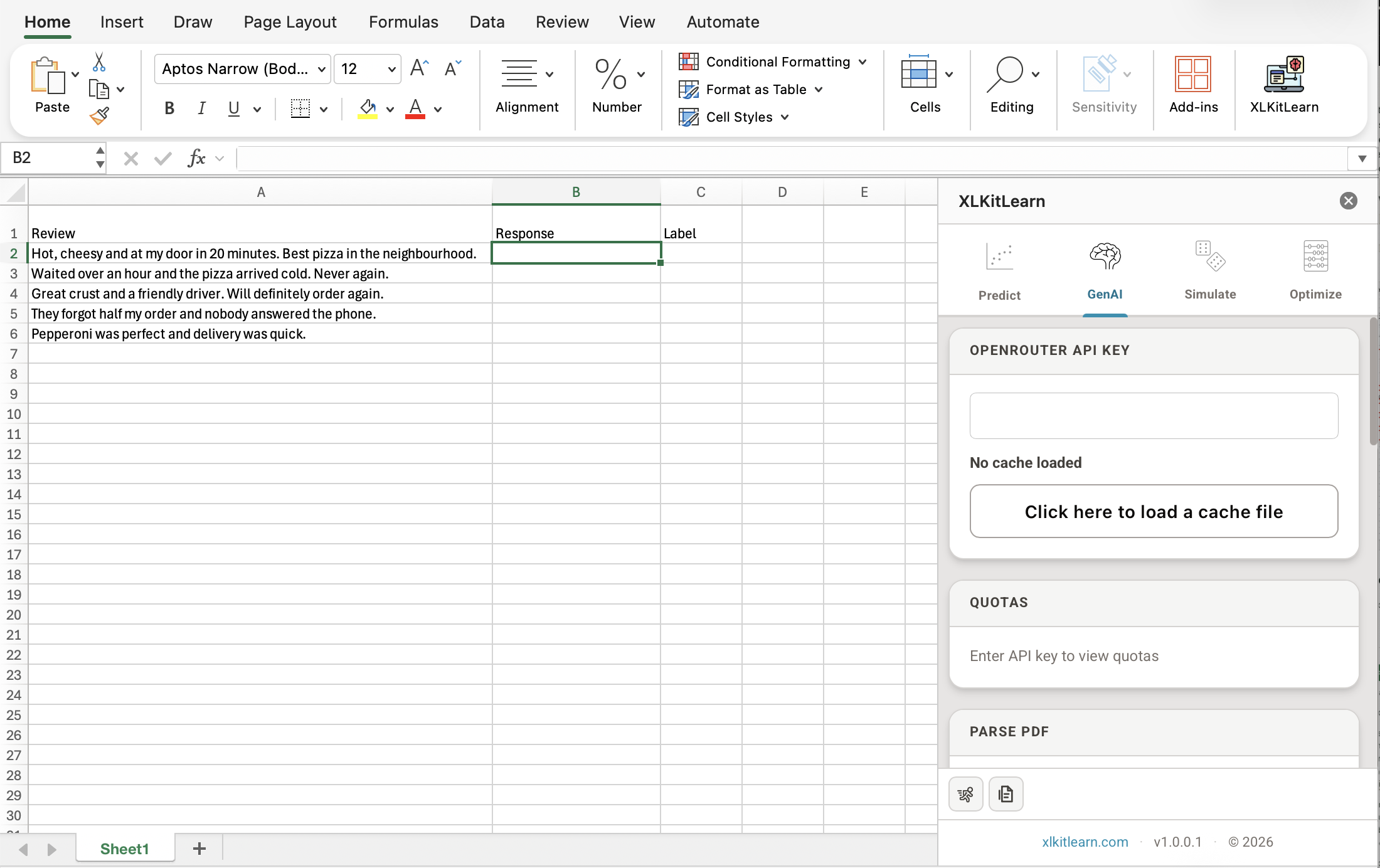
Download or copy the example below. The spreadsheet contains five reviews your shop received this week.
Open the downloaded workbook, or paste the copied example into cell A1.
Column A contains the reviews. Some are too long to show in full, which doesn't matter: the AI model reads the whole cell.
Columns B and C are empty for now. Column B will hold the AI model's responses, and column C the labels you extract from them.
On Excel's Home tab, click XLKitLearn. The add-in pane opens on the right.
At the top of the pane, activate the GenAI tab.
API key
Enter your API key and check your credit
Every prompt you send to an AI model costs a small amount of money, which is paid from the credit attached to your API key. Paste the OpenRouter API key from your course email into the OpenRouter API key field. You should treat this key like a password or a credit card number - it grants access to your OpenRouter balance.
The Quotas section now shows how much of your credit you have used. The prompts in this quickstart cost well under a cent.
XLKitLearn does not save your key: you paste it again each time you open Excel. This means you can share a workbook without sharing your key by mistake.
Prompt
Ask the AI model to classify each review
In cell B2, enter =XKL.LLM("Classify this pizza review as Positive or Negative. Reply with one word only. Review: " & A2). The text in quotes is your instruction, or prompt, to the AI model, and & adds the review in A2 to the end of it.
Copy the formula down to B6, so each review gets the same instruction. Each cell now shows Ready to run: XLKitLearn doesn't call the AI model as soon as you type a formula, because every call costs money. In the next step, we will tell XLKitLearn to actually run those prompts.
Asking for one word from a fixed list keeps the answers short and consistent, which makes them easy to count later.
Run
Run the staged cells
Select cells B2:B6.
At the bottom of the pane, click the run icon. Your prompts will then be sent to OpenRouter. The five calls take a few seconds in total.
Results
Read the AI model's answers
Each cell in column B now shows LLM Output followed by the model's answer (yours may occasionally be different because LLMs sometimes output different answers with every run). If you click on the little speech bubble at the start of each cell, a dialogue will pop up with information about this LLM call, including its cost, number of tokens, and more.
Each cell in column B holds the model's full response, including details such as its cost. To extract the answer only (so that you can use it in other formulas), enter =B2.Content in cell C2 and copy it down to C6. Column C now contains plain text: Positive or Negative.
Count
Optional: count the negative reviews
In cell E1, type Negative reviews. In cell E2, enter =COUNTIF(C2:C6,"Negative"). It counts the cells in C2:C6 that say Negative: here, 2.
With five reviews you could count by eye. With five thousand, the same two formulas do the work in seconds.
Guide · Simulate
Simulate
Run your spreadsheet model thousands of times with random inputs and see the full range of results, directly from Excel.
Quickstart
You run a pizza shop. Each pizza sells for $15, and every ball of dough costs $3, whether you use it or not. Based on historical data, you know that your customers order an average of 40 pizzas every evening, with a standard deviation of 6.3 pizzas. To meet this demand, you mix and knead enough dough to make 40 balls every afternoon, and you expect to make (40 × $15) - (40 × $3) = $480 a night. But orders change from night to night: on busy nights you run out of dough and turn customers away, and on quiet nights dough goes in the bin. In this quickstart, you'll use XLKitLearn's Simulate module to play out 1,000 random evenings and find out your shop's true expected profit. Follow along with the steps below...
→→→→→
Step 1 of 6
Loading screenshot…
78
Open
Set up the model
Your shop is about to open, and you've made 40 balls of pizza dough. Download or copy the example below; the spreadsheet contains a model that calculates the shop's profit on any given night.
Open the downloaded workbook, or paste the copied example into cell A1.
The first three rows contain data pertaining to the shop's operations.
The fourth row simulates the number of orders on any specific night. It uses XLKitLearn's SIMNORMAL function, which takes the mean and standard deviation of a normal random variable, and returns a single random draw from that distribution. The small icon next to the number indicates that the cell holds a simulated number - every time Excel recalculates, the number will change. Press F9 a few times: each press plays out a different evening.
Your shop doesn't sell half pizzas, so the simulated number of pizzas needs to be rounded. Row 5 rounds the simulated number of pizzas. Notice that the rounded number does not contain the "simulated number" icon because that number is not directly simulated - it is derived from a simulated number. XLKitLearn only displays the icon next to numbers that were directly simulated.
The number of pizzas sold cannot exceed demand, and cannot exceed the number of dough balls prepared. Row six calculates the total number of pizzas actually sold by finding the minimum of these two numbers.
Finally, this cell calculates the total profit that night - revenues from the pizzas actually sold minus the cost of preparing 40 dough balls.
You're now ready to set up the simulation in XLKitLearn. On Excel's Home tab, click XLKitLearn. The add-in pane opens on the right.
At the top of the pane, activate the Simulate tab.
Forecast
Specify the quantities you want to forecast
The forecast is the set of cells Simulate records on every simulated evening. Here, we'll forecast rounded orders, pizzas sold and profit.
Select the names of the cells you want to simulate, cells A5:A7.
In the Forecast box, click the small table icon at the right end of the Name field. The field now shows the range. Simulate will use these names in its results.
Select cells containing the actual values you want to simulate, cells B5:B7.
Click the same icon in the Cell field.
Settings
Set the number of simulations and run
Leave Number of simulations at 1000. XLKitLearn's simulation module will recalculate the sheet 1,000 times, each time with a new random number of orders, and record the value of the forecast cells.
Tick Output histograms. These charts are a useful way to see the results, as you'll see in the last step.
Click Run.
Note: for this quickstart, we leave Scenario analysis and Seed switched off. See the rest of this guide for what they do.
Run
Wait for the simulation to run
A progress window counts through the 1,000 simulations. A model this small will take about a second. To abort the simulation, click Cancel.
When it finishes, a new Simulation results sheet opens. Each run adds its own results sheet, so you can run as many simulations as you like and keep them all to compare.
Results
Read the results
The simulation result table has one column for each forecast cell you tracked. Your numbers will differ slightly from these, because every run uses different random evenings. To get exactly the same numbers every time, you can use a Seed; see the rest of this guide.
Look at the Average row. Rounded orders average about 40, as expected. But pizzas sold average only about 37.5, because on busy nights you run out of dough.
So average profit is about $442, not the $480 you expected.
Percentiles show the range of simulated outcomes. For example, the 0.05 row means 5% of the simulated evenings earned less than that amount (about $330).
Histograms
Analyze the simulation histograms
Scroll right on the results sheet to find the histograms. You can close the XLKitLearn pane for more space. Each histogram shows how often each value came up across the 1,000 evenings. Rounded orders is roughly balanced: a busy evening is about as likely as a quiet one.
Pizzas sold is not. All the busy evenings pile up in one tall bar at 40, because once the dough runs out, extra customers are turned away.
Profit has the same shape: a tall bar at the top and a long tail of bad nights to the left. Quiet nights cost you money, but busy nights can't make up for it. That's why the average falls short of $480.
Optional: order more dough. Go back to your model sheet, change B3 to 45, and click Run again. A new results sheet opens, and average profit is likely to rise to about $453. Ordering a little more than average demand pays off here, because a missed sale costs you $12 in lost profit while a wasted dough ball costs only $3. Try other numbers to find the best order size.
Guide · Optimize
Optimize
Find the best decision for a linear model by maximizing or minimizing an objective subject to constraints.
XLKitLearn's optimize module is compatible with Excel's solver add-in. Any settings you specify in XLKitLearn will appear in solver, and vice versa. XLKitLearn only supports linear optimization problems, but it can solve much larger linear optimization problems than Excel's solver add-in.
Quickstart
You run a pizza shop, and it's time to plan tonight's prep. You sell three pizzas: Cheese, Pepperoni, and a Philly tomato pie (a thick, square-cut pizza usually eaten at room temperature and sold by the tray in Philadelphia). Each pizza earns the store a different profit and uses different amounts of dough, cheese, and prep time, and you only have so much of each to go around. You've also committed to fulfill a catering order of 25 tomato pies for a party. In this quickstart, you'll use XLKitLearn's Optimize module to decide how many of each pizza to make to maximize your profit without running out of anything. Follow along with the steps below...
→→→→
Step 1 of 5
Loading screenshot…
Set up
Set up the optimization model in Excel
Download or copy the example below; the spreadsheet contains the data pertaining to the shop's operations that we will be working with in this section.
Open the downloaded workbook, or paste the copied example into cell A1.
Row 2 lists the profit per pizza.
Row 7 will hold the solution (how many pizzas to make to maximize profit) once XLKitLearn's optimize module has found it.
Rows 3-5 list the quantity of each resource each type of pizza uses. Column E contains formulas - for example, cell E3 contains the formula =SUMPRODUCT(B3:D3,$B$7:$D$7), which multiplies the number of pizzas made by the number of dough balls required for each, thus calculating the total number of dough balls required for a given solution. Column G lists the total amount of that resource available, and column F indicates that the total amount utilized should be no larger than the amount available.
Cell D9 contains the catering minimum - the number of tomato pies will have to be at least that number.
Cell B11 contains the objective function =SUMPRODUCT(B2:D2,B7:D7) - the total profit for a given solution. This is the number we will try to make as large as possible.
On Excel's Home tab, click XLKitLearn. The add-in pane opens on the right.
At the top of the pane, activate the Optimize tab.
Connect
Set up the optimization problem
Objective function: specify the cell that should be maximized/minimized. In this case, we want to maximize the problem, so click cell B11 (Total Profit), then click the icon at the right of the objective textbox. Leave Maximize selected.
Decision variables: tell XLKitLearn what cells should be modified to reach the optimal solution. Select B7:D7 (Pizzas to Make), then click the icon at the right of the decision variables textbox.
Constraints: specify the restrictions on the optimal solution. Select E3:E5 and click the icon in the textbox on the left. Leave the dropdown on <=. Select G3:G5 and click the right select icon. Then click the green check mark. This will recreate the constraint on the spreadsheet.
Catering order: add a second constraint the same way: D7 on the left, >= in the dropdown, and D9 on the right. Click the green check mark. These two constraints are the same rules you wrote in the spreadsheet.
The constraints you added will appear in the constraint list.
Check Make unconstrained variables non-negative. Nothing else stops Cheese or Pepperoni from going below zero, and you can't make a negative number of pizzas.
Check
Preview the LP before you run
Click Preview LP, next to Run. The pane writes your model out as a linear program (LP): the objective and constraints as plain equations, with the decision cells B7, C7, and D7 standing in for the number of each pizza. It's a quick way to make sure Optimize understood your spreadsheet before you run it.
Objective: under Maximize, you should see 8 B7 + 10 C7 + 5 D7, which is each pizza's profit times how many you make.
Constraints: under Subject To, c1 to c3 should match the dough, cheese, and prep time rows, with the numbers from rows 3–5 and the limits of 100, 550, and 240. c4 should read D7 >= 25, the catering order.
Bounds: you should see 0 <= B7, 0 <= C7, and 0 <= D7, meaning no pizza count can go below zero. If they say free instead, the non-negative box isn't checked. Go back and check it.
To check the same model on your worksheet instead, click Show on spreadsheet.
Optimize outlines the cells in each constraint so you can see which cells it's comparing. The objective function cell will be highlighted in yellow and the decision variable cells will be highlighted in red.
If anything doesn't match, click Close and fix the cell or constraint before you run. If it all looks right, click Close and move on.
Review
Run Optimize and review the results
Click Run. When you see Optimization Successful, Optimize has found a solution. The best plan is now in B7:D7: 17.5 Cheese, 57.5 Pepperoni, and 25 Tomato Pie, for a total profit of $840.
Compare the Total and Available columns. Dough (100 of 100) and prep time (240 of 240) are fully used, so they're what limit tonight's plan. Cheese (535 of 550) has 15 oz left over, so buying more cheese wouldn't help.
Tomato Pie sits exactly at the catering minimum of 25. It earns the least of the three, so without the catering order, the best plan would make none at all.
Optional: require whole pizzas. Pizzerias generally don't make half pizzas. Go to the next step to see what changes when we add a whole pizza constraint.
Optional
Require whole pizzas
You can't sell half a pizza. To fix that, add one more constraint: select B7:D7, choose int in the dropdown, and click the green check mark. (If you preview the LP first, the integer cells now appear under General.)
Click Run again. The new plan is 18 Cheese, 57 Pepperoni, and 25 Tomato Pie, for $839.
Why not just round the first answer yourself? Rounding the other way, to 17 Cheese and 58 Pepperoni, looks just as reasonable but needs 241 minutes of prep time, one more than you have. With int, Optimize finds the best whole-number plan that actually fits.
Reference guide
Function reference
The list below is a comprehensive list of every function in the add-in. Use the search on the left to filter these functions.
Spilled range
Click to run
Machine learning - model fitting
Fit reusable models and use them to generate predictions for new data.
XKL.FITLINEARREGRESSION▼
Fits a linear regression to a dataset, to predict a continuous outcome using one or more other variables. The data you provide to the function should include one column for every variable, and one row for each observation, with the variable names in the first row. There are two ways to specify the dependent and independent variables in your linear regression model:
To choose the predictors yourself, for example to use only some of the columns, write the outcome, a tilde (~), then the predictors joined with +. For example, if your data is in A7:C13, with columns sales, ads and price, you would write =XKL.FITLINEARREGRESSION(A7:C13,"sales ~ ads + price"). See the "Predict" section above for more details on XLKitLearn's formula language.
To predict one specific column using every other column in the table as a predictor, write just the outcome column's name. For example, =XKL.FITLINEARREGRESSION(A7:C13,"sales") uses both ads and price.
Sample function call
=XKL.FITLINEARREGRESSION(data, formula)
Parameters
data
The training data, including a header row with column names. The formula refers to variables by these header names.
formula
The outcome and predictors in quotes, for example "sales ~ ads + price". Use the header names exactly as they appear in data. Or give just the outcome's name, for example "sales", to use every other column as a predictor.
Returns
A fitted model, shown in the cell as a small card, that you can use in XKL.PREDICT to make predictions.
It also exposes the following elements through dot notation:
.coefficients: the coefficient table, with standard errors, 95% confidence intervals, p-values and significance stars. If the model is in cell A5, type =A5.coefficients in an empty cell. The full table appears, filling the cells below and to the right.
Working example
Open the downloaded workbook, or paste the copied example into cell A1.
XKL.FITLOGISTICREGRESSION▼
Fits a logistic regression to a dataset, to predict the probability of a yes/no outcome (such as whether a delivery will arrive late) using one or more other variables. The data you provide to the function should include one column for every variable, and one row for each observation, with the variable names in the first row. There are two ways to specify the dependent and independent variables in your logistic regression model:
To choose the predictors yourself, for example to use only some of the columns, write the outcome, a tilde (~), then the predictors joined with +. If your data is in A7:C27, with columns late, distance and orders_waiting, you would write =XKL.FITLOGISTICREGRESSION(A7:C27,"late ~ distance + orders_waiting"). See the "Predict" section above for more details on XLKitLearn's formula language.
To use every other column in the table as a predictor, write just the outcome's name. With the same data, =XKL.FITLOGISTICREGRESSION(A7:C27,"late") uses both distance and orders_waiting.
Note that to fit a logistic regression, the outcome column must contain 0s or 1s only.
Sample function call
=XKL.FITLOGISTICREGRESSION(data, formula)
Parameters
data
The training data, including the header row. The formula refers to columns by these header names, and the outcome column must contain only 0 and 1.
formula
The outcome and predictors in quotes, for example "late ~ distance + orders_waiting". Use the header names exactly as they appear in data. Or give just the outcome's name, for example "late", to use every other column as a predictor. Note that the outcome column must contain 0s and 1s only.
Returns
A fitted model, shown in the cell as a small card, that you can use in XKL.PREDICT to make predictions.
It also exposes the following elements through dot notation:
.coefficients: the coefficient table, with standard errors, 95% confidence intervals, p-values and significance stars. If the model is in cell A5, type =A5.coefficients in an empty cell. The full table appears, filling the cells below and to the right.
Working example
Open the downloaded workbook, or paste the copied example into cell A1.
XKL.FITKNN▼
Fits a k-nearest-neighbors (KNN) model to a dataset to predict an outcome variable based on one or more predictor variables. The model can predict the outcome for a new row of predictors by looking at the training set, finding the k rows with predictors closest to the new predictors, and averaging the outcome for those rows. There are two ways to specify the dependent and independent variables in your model:
To choose the predictors yourself, for example to use only some of the columns, write the outcome, a tilde (~), then the predictors joined with +. If your data is in A7:C15, with columns corresponding to total_spend, visits, and club_membership, you would write =XKL.FITKNN(A7:C15,"total_spend ~ visits + club_membership",3) to fit a k-nearest-neighbors model that looks at the 3 nearest neighbors.
To use every other column in the table as a predictor, write just the outcome's name. With the same data, =XKL.FITKNN(A7:C15,"total_spend",3) uses both visits and club_membership.
Sample function call
=XKL.FITKNN(data, formula, k, [row_to_exclude])
Parameters
data
The training data, including the header row. The formula refers to columns by these header names.
formula
The outcome and predictors in quotes, for example "total_spend ~ visits + club_membership". Use the header names exactly as they appear in data. Or give just the outcome's name, for example "total_spend", to use every other column as a predictor.
k
How many neighbors to use. A positive whole number, no larger than the number of training rows.
row_to_excludeoptional
You can leave a training row out when building the model, which lets you test the model fairly: predict that row with XKL.PREDICT and compare the prediction with its real outcome. Give the row as a number: 1 selects the first row below the header, 2 the second, and so on (note: only one row can be left out). Omit this to use every row.
Returns
A fitted model, shown in the cell as a small card, that you can use in XKL.PREDICT to make predictions.
Working example
Open the downloaded workbook, or paste the copied example into cell A1.
Machine learning - helpers
Evaluate model performance, inspect classification results, and transform data for modeling and visualization.
XKL.RSQUARED▼
Calculates R-squared, which measures how well a model's predictions of a number, such as weekly sales, match what actually happened. A score of 1 means the predictions are perfect, and 0 means the model is no better than predicting the average. For example, an R-squared of 0.8 means the model explains 80% of the variation in sales (how much sales go up and down from week to week).
Sample function call
=XKL.RSQUARED(y_true, y_pred)
Parameters
y_true
The actual value for each case, in a single row or column, for example the number of slices sold each week. Use numbers only, and give at least two values.
y_pred
The model's prediction for each case, in the same order as y_true and with the same number of values. These usually come from XKL.PREDICT: select its output without the header row.
Returns
A single number, at most 1, showing roughly how much of the variation in y_true the predictions explain. Higher is better. 1 means every prediction is exactly right. 0 means the model does no better than predicting the average of y_true every time. Below 0 means the model does worse than that. This can happen on test data when a model overfits.
Working example
Open the downloaded workbook, or paste the copied example into cell A1.
XKL.RMSE▼
Calculates the RMSE (root mean squared error), which tells you how far off a model's predictions of a number typically are, in the same units as what you're predicting. For example, a pizza shop that predicts weekly sales to decide how much dough to prepare needs to know how many slices those predictions are usually off by. An RMSE of 5 means they're typically off by about 5 slices. Lower is better, and 0 means every prediction is exactly right.
RMSE or R-squared: The R-squared, which you can calculate using XKL.SQUARED is a scaled version of the RMSE that falls between 0 and 1. The RMSE tells you how big the errors are in real units.
How it's calculated: for each case, take the error (actual minus predicted) and square it. Average the squares, then take the square root. Because the errors are squared, a few large misses raise RMSE more than many small ones.
Sample function call
=XKL.RMSE(y_true, y_pred)
Parameters
y_true
The actual value for each case, in a single row or column, for example the number of slices sold each week. Use numbers only.
y_pred
The model's prediction for each case, in the same order as y_true and with the same number of values. These usually come from XKL.PREDICT: select its output without the header row.
Returns
A single number, 0 or more, in the same units as y_true, showing roughly how far off a typical prediction is. Lower is better: 0 means every prediction is exactly right. There is no fixed cutoff for a good RMSE, so compare it with the size of the values you are predicting, or with other models' RMSE on the same data.
Working example
Open the downloaded workbook, or paste the copied example into cell A1.
XKL.AUC▼
Calculates the AUC (area under the curve), which evaluates how well a classification model tells two groups apart, such as customers who bought vs. didn't, or posts that break the rules vs. posts that don't. It checks the model's predicted probabilities against the actual outcomes, and calculates the area under the ROC curve, which you can draw using XKL.ROCCURVE. The score is usually between 0.5 and 1. A score of 1 means the model separates the groups perfectly, and 0.5 means it is no better than guessing.
Comparing models: calculate each model's AUC against the same actual outcomes. The model with the higher AUC is better at telling the groups apart. For example, fit one model using XKL.FITLOGISTICREGRESSION and another with XKL.FITKNN. Then get each one's predicted probabilities with XKL.PREDICT and calculate the AUC of each.
(Advanced) Three or more groups:XKL.AUC also works when there are more than two groups. Give one probability column per group, in alphabetical order of the group names: for low, medium and high, the columns go high, low, medium. Columns are matched to groups by position, not by their headers, so the wrong order gives a wrong score.
Sample function call
=XKL.AUC(y_true, y_pred)
Parameters
y_true
The actual outcome for each case, in a single row or column. Usually this is 0 or 1, for example 1 if the customer bought and 0 if they didn't. Include at least one of each. Text outcomes such as "yes" and "no" also work; see y_pred for which probability to give.
y_pred
The model's predicted probability for each case, in the same order as y_true.
For 0/1 outcomes, you can simply provide each case's probability of 1, in a single column.
Alternatively, you can provide a table containing the probability of each outcome, with the columns sorted in alphabetical order. For example, if the valid outcomes in y_true are low, medium, and high, the first column should list the probability of high, the second the probability of low, and the last column the probability of medium. These probabilities can be obtained directly from XKL.PREDICT: select the whole output for that function except for the header row.
Returns
A single number between 0 and 1. Higher is better: 1 means a perfect ranking and 0.5 means the model does no better than chance. A value well below 0.5 usually means y_pred holds the probability of the wrong outcome, for example the probability of 0 instead of 1. If this happens, check y_pred and recalculate.
Working example
Open the downloaded workbook, or paste the copied example into cell A1.
XKL.CONFUSIONMATRIX
Spills
▼
Builds a confusion matrix: a table that counts how often a classification model's predictions were right and wrong, compared with what actually happened. For example, for deliveries that are either late (1) or on time (0), a late delivery counts as a positive and an on-time delivery as a negative. The table shows how many:
True positives: late deliveries the model correctly predicted as late
False negatives: late deliveries it wrongly predicted as on time
False positives: on-time deliveries it wrongly predicted as late
True negatives: on-time deliveries it correctly predicted as on time
From probabilities to predictions:XKL.CONFUSIONMATRIX needs predicted outcomes, such as 0 or 1, not probabilities. If your model produces probabilities, for example from XKL.PREDICT, choose a threshold and turn each probability into a prediction, for example =IF(B12>=0.5,1,0). A lower threshold catches more of the 1s but also flags more of the 0s by mistake. XKL.ROCCURVE shows this trade-off across every threshold, and XKL.AUC sums it up in a single number. Use XKL.CONFUSIONMATRIX once you've chosen a threshold, to see exactly how many of each kind of mistake the model makes.
(Advanced) Three or more groups: the table works the same way, with one row and one column per group.
Sample function call
=XKL.CONFUSIONMATRIX(y_true, y_pred)
Parameters
y_true
The actual outcome for each case, in a single row or column, for example 1 if a delivery was late and 0 if it was on time. Outcomes can be numbers or text.
y_pred
The model's predicted outcome for each case, in the same order as y_true. Use the same labels as y_true, for example 0 and 1 in both. These must be predicted outcomes, not probabilities. See above for how to turn probabilities into predictions.
Returns
A table that spills below and to the right of the cell. The top-left cell reads "Actual / predicted", the first column lists the actual outcomes, and the first row lists the predicted outcomes, both in alphabetical order. For 0/1 outcomes, the four counts are:
Actual 0, predicted 0: true negatives
Actual 0, predicted 1: false positives
Actual 1, predicted 0: false negatives
Actual 1, predicted 1: true positives
Working example
Open the downloaded workbook, or paste the copied example into cell A1.
XKL.ROCCURVE
Spills
▼
An ROC curve charts the tradeoff between the true positive rate and false positive rate as a model's classification threshold changes. For example, a pizza shop that texts customers when a delivery might be late has to decide when to send the text: when the predicted chance of being late is above 0.5? Above 0.3? A lower threshold warns more of the customers whose delivery really is late, but also warns more customers whose delivery arrives on time. XKL.ROCCURVE shows this trade-off at every possible threshold, so you can choose the one that fits.
Each row of the output is one threshold. It shows the share of on-time deliveries the model would wrongly predict as late (the false positive rate) and the share of late deliveries it would correctly predict as late (the true positive rate). In general, these are the share of 0s predicted as 1, and the share of 1s predicted as 1. A curve that climbs steeply toward the top-left corner means the model catches most late deliveries while warning few on-time customers. A straight diagonal line means it is no better than guessing. The area under the curve is the AUC, a single number you can calculate with XKL.AUC.
Drawing the curve: select the output, including its header row, and choose Insert > Scatter.
Choosing a threshold: each point is a threshold you could use to turn probabilities into predictions. To see the exact counts behind any point, use that threshold with XKL.CONFUSIONMATRIX.
Sample function call
=XKL.ROCCURVE(y_true, y_pred)
Parameters
y_true
The actual outcome for each case, in a single row or column, for example 1 if a delivery was late and 0 if it was on time. There must be exactly two different outcomes. With text outcomes such as "no" and "yes", the one that comes second alphabetically (here "yes") is treated as the positive outcome.
y_pred
The model's predicted probability of 1 for each case, in a single row or column, in the same order as y_true. Unlike XKL.AUC, this must be a single column: if the probabilities come from XKL.PREDICT, select only its second column (the probability of 1), without the header.
Returns
A two-column table headed False positive rate and True positive rate, which spills below and to the right of the cell. There is one row per threshold, starting from the highest predicted probability and working down to the lowest, so both rates rise from top to bottom and the last row is (1, 1). If there are more than 20 different probabilities, 20 evenly spread thresholds are used.
Working example
Open the downloaded workbook, or paste the copied example into cell A1.
XKL.PREDICT
Spills
▼
Predicts the outcome for new data, such as next month's sales, using a model you have already built. Build the model first (either with a FIT function, or on the Predict tab with Output model object ticked). Then give XKL.PREDICT the model's cell and the new data for which you want to make a prediction. For example, if the model is in A5 and the new data is in A17:B20, you would write =XKL.PREDICT(A5,A17:B20).
Sample function call
=XKL.PREDICT(model, data)
Parameters
model
The cell holding the fitted model, for example A5.
data
The new rows, including a header row. The column names must match the predictors the model was trained on exactly, including capital letters. The outcome column is not needed.
Returns
A table of predictions, with one row for each row of new data. It fills the cells below the formula.
If the model predicts a number, such as sales, you get one column with the title Prediction.
If the model predicts a yes/no or a category, such as late or on time, you get one column for each possible answer, giving the probability of that answer. For logistic regression, the columns are titled 0 and 1, the two values in your outcome column (for example, 0 = on time and 1 = late).
Working example
Open the downloaded workbook, or paste the copied example into cell A1.
XKL.MDS
Spills
▼
Turns items described by high-dimensional vectors (i.e. many numbers, representing many dimensions) into points on a two-dimensional graph (i.e., an "x value" and a "y value"), so you can plot them and see which items are similar. Similar items end up close together, and different items end up far apart.
It is particularly when applied to embeddings. Embedding models (which you can access using XKL.EMBED), turn each piece of text or image into a long list of numbers (often more than a thousand) which capture the "essence" of that text or image. You can't plot that many dimensions, but XKL.MDS reduces them to two per item. Plot those on a scatter chart, and you can see how the model grouped your items: for example, whether it put reviews about late deliveries together, apart from reviews about taste.
Drawing the map: plot the two output columns to see how close the items are to each other. If you would like to automatically create a plot with labels, use the "Create compound plot" feature in XLKitLearn's GenAI tab: select the first output column as the x-values, the second as the y-values, and the item names as labels, so you can tell which point is which. If you embedded images, you can use the images themselves as labels.
How it works: MDS (multidimensional scaling) measures the distance between every pair of rows, using all their columns. It then places the points on the map so that those distances are kept as closely as possible.
Reading the map: only the distances between points matter. The coordinates have no units, and the map can come out rotated or flipped, for example with a different seed, while showing the same picture.
Other data:XKL.MDS works with any table of numbers, not just embeddings. For example, you could map customers by how often they visit, how much they spend and how far away they live, to see which customers are alike. Columns with bigger numbers count more, so if one column is a price in dollars and another is a 1–5 rating, the price will dominate the map. Put the columns on similar scales first, for example with Excel's STANDARDIZE.
Sample function call
=XKL.MDS(data, [seed], [n_init])
Parameters
data
The numbers describing each item, with one row per item and one column per measure, for example one row per review and one column per number in its embedding. Select only the numbers: leave out the header row and any name column.
seedoptional
MDS starts from random positions and improves them. The seed fixes that random start, so you get the same map every time. A different seed may give a rotated or flipped version of the same map. Defaults to 123.
n_initoptional
How many times MDS starts from different random positions. It keeps the best map. More starts can give a slightly better map but take longer. Defaults to 25, and you rarely need to change it.
Returns
Two columns of numbers, with one row for each row of data, in the same order. Each row is that item's position on the map: the first column is across and the second is up. There is no header row. The output fills the cells below and to the right of the formula.
Working example
Open the downloaded workbook, or paste the copied example into cell A1.
XKL.SIGMOID
Spills
▼
Turns a number into a probability between 0 and 1. It is the last step of a logistic regression.
When you fit a logistic regression, you get an intercept and a coefficient for each variable. For example, a pizza shop's model for late deliveries might be -4 + 0.8 × distance in miles. Plugging in a distance gives a number, but not a probability: a 2-mile delivery gives -2.4, and an 8-mile delivery gives 2.4. The sigmoid turns these numbers into probabilities: -2.4 becomes 0.08 (an 8% chance of being late), and 2.4 becomes 0.92 (92%). That is why a logistic regression's predictions are always between 0 and 1.
The sigmoid follows an S-shaped curve. 0 becomes 0.5, large positive numbers become probabilities close to 1, and large negative numbers become probabilities close to 0, without ever quite reaching them.
When you need it: usually you don't, because XKL.PREDICT does this step for you. Use XKL.SIGMOID when you want to work out a prediction yourself from the coefficients, for example to build a what-if calculator: change a delivery's distance and see how the chance of it being late changes.
The formula is 1 / (1 + EXP(-x)).
Sample function call
=XKL.SIGMOID(x)
Parameters
x
The number to turn into a probability. Usually you calculate it yourself from a logistic regression's coefficients: the intercept plus each coefficient times its variable, such as -4 + 0.8 × distance. To see the coefficients, use .coefficients on a model from XKL.FITLOGISTICREGRESSION, for example =A5.coefficients. Don't use the predictions from XKL.PREDICT: they are already probabilities. You can give a single cell, or a row or column of cells to convert several at once. With several cells, the results always come out side by side in a row, even if the numbers are in a column.
Returns
The probability for each number in x, between 0 and 1. For a single cell, you get one number. For a row or column of cells, you get a row of probabilities in the same order, filling the cells to the right.
Working example
Open the downloaded workbook, or paste the copied example into cell A1.
Statistics
Estimate statistical models and inspect coefficient estimates and inference.
XKL.TWOSLSREG
Spills
▼
Fit a two-stage least squares instrumental variables regression using statsmodels. Write the formula as known_y ~ exog_x | endog_x | instruments, with multiple terms joined by +. Exogenous regressors are included automatically in the instrument matrix; the final section lists excluded instruments. An intercept is included by default. Use y ~ 1 | d | z for an intercept with no exogenous predictors, or y ~ 0 | d | z to omit the intercept. Use y ~ x - 1 | d | z for exogenous predictors without an intercept. Missing or nonfinite model values, collinear columns, and underidentified models return an error. Standard errors use the usual homoskedastic 2SLS covariance with residual degrees of freedom n - k.
Sample function call
=XKL.TWOSLSREG(data, formula)
Parameters
data
The observations, including a header row with unique column names for the outcome, regressors, and instruments.
formula
A formula in quotes, for example "y ~ x1 + x2 | d | z1 + z2". The sections specify the outcome and exogenous regressors, endogenous regressors, and excluded instruments.
Returns
A spilled coefficient table with variable names, coefficients, standard errors, 95% confidence intervals, p-values, and significance stars.
Working example
Open the downloaded workbook, or paste the copied example into cell A1.
GenAI - core
Send prompts to language models and create embeddings through OpenRouter.
XKL.LLM
Click to run
▼
Sends a prompt to an AI model, such as ChatGPT or Claude, and shows its answer in the cell. Use it, for example, to label hundreds of customer reviews as Positive or Negative. Each call costs a small amount of your OpenRouter credit, so XLKitLearn does not send the prompt as soon as you type the formula. The cell shows Ready to run until you select it and click the run icon at the bottom of the XLKitLearn pane. There are two ways to call this function:
To ask one question, write the prompt in quotes. To add a cell's text to the prompt, join it on with &. If a review is held in cell A9, you would write =XKL.LLM("Is this pizza review Positive or Negative? Reply with one word. Review: "&A9).
To ask a follow-up question, remember that AI models have no memory. Each call starts from scratch, so you must send the whole conversation so far. Put your first prompt, the model's first answer and your next prompt in one column, in that order. If they are in A9, A10 and A11, you would write =XKL.LLM(A9:A11). Because the whole conversation is sent each time, long conversations cost more.
The other parameters, described below, are optional. They let you pick the model, limit the length of the answer, and more.
The output of this formula is an LLM response object, which shows the start of the LLM's response. To get the answer as plain text that other formulas can use, add .Content to the cell, for example =A5.Content. See the "Returns" box below for more details.
Keep the cell selected while it runs; this will allow XLKitLearn to stream the response (reveal it bit by bit) in a box at the bottom of the XLKitLearn pane.
Your prompt, either text in quotes, or a cell holding the text. To ask a follow-up question, include your entire conversation so far, as a vertical range such as A9:A11.
modeloptional
Which AI model to use, in quotes. You can use a short name, in lower case: "chatgpt", "claude-haiku", "claude-sonnet", "claude-opus", "gemini-pro", "gemini-flash", "grok", "deepseek", "kimi" or "glm". Each short name uses the latest version of that model. To pick a specific version, give its full name from the OpenRouter model list, for example "openai/gpt-5.4-mini". If you omit this argument, OpenRouter will look at your prompt and try to determine the cheapest model that will give you a good response.
toolsoptional
Lets the model do things it can't do on its own, such as search Google Maps or send an email. Each of these is called a tool. Create each tool in a cell of its own, using a function from the GenAI - tools section, then provide those cells here, for example C2:C4. You can't use tools and response_format in the same call. For a step-by-step explanation, see the GenAI - tools section.
response_formatoptional
Forces the model answer in a fixed format, so you can ensure the output is structured as you want it to be. There are two ways to do this:
To get a single response out of the LLM but to force the response to be a number, integer (whole number) or boolean (true or false), pass "number", "integer", or "boolean" respectively to this argument.
To get several specific pieces of information from one prompt (for example, whether a review is Positive or Negative, *and* a rating from 1 to 5), use the helper function XKL.GETRESPONSEFORMATFIELD. Select the resulting cells here.
You can't use response_format and tools in the same call.
reasoningoptional
How much the model thinks before it answers, in quotes: "high", "medium", "low" or "none". More thinking can help with harder questions, but it's slower and costs more. Omit this to use the model's default setting. Some models don't support this setting and show an error if you use it, or ignore it completely.
temperatureoptional
How varied the answers are, as a number from 0 to 2. Lower numbers give more consistent answers, so the same prompt tends to get the same answer each time. Higher numbers give more varied, creative answers. Omit this to use the model's default setting. Some models don't support this setting and show an error if you use it, or ignore it completely.
max_tokensoptional
The longest answer the model can write, measured in tokens. Omit this to allow up to 5,000 tokens. If the model reaches the limit, its answer stops part way through. To count the tokens in a piece of text, use XKL.TOKENIZE.
auto_tool_runoptional
When the model wants to use one of your tools, it decides which tool to use and what to put in the request, for example the words to search Google Maps for, but it doesn't run the tool automatically unless this setting is set to TRUE:
Omit this argument, or pass FALSE, to have the LLM function return a list of tools it wants to use without running them automatically. To inspect those requests, run .[Tool calls] on the LLM result, and run the tools requested. In the next XKL.LLM formula, include this cell and all the tool results.
Pass TRUE to have XLKitLearn run the tools straight away and save the results in this cell, then include just this cell in your next XKL.LLM formula. Be careful with tools that send emails or texts, as they will be sent without asking you first.
For a step-by-step explanation, see the GenAI - tools section.
Returns
An LLM response object, which shows the start of the LLM's response. Click the small speech bubble at the start of the cell to see the full answer, its cost and more.
It also exposes the following elements through dot notation. For example, if the answer is in cell A5, type =A5.Content in an empty cell.
.Content: the answer as plain text, so you can use it in other formulas.
.Cost: what it cost, in cents.
.[Time taken]: how long it took, in seconds.
.field_ followed by a name, such as .field_mood: if you asked for separate answers with response_format, each answer will be returned in one such field. If you prefer to retrieve every answer at once, use .Content, to get a table of all fields.
.[Tool calls]: the model's requests to use a tool, as a table filling the cells below and to the right. See auto_tool_run above.
.[Reasoning summary]: a short summary of the model's thinking, for models that support reasoning.
.[Prompt tokens], .[Cached prompt tokens], .[Total completion tokens] and .[Reasoning tokens]: how many tokens were sent to the model, how many of those it had seen recently (these usually cost less), how many it responded with, and how many it used for reasoning.
(Advanced) XLKitLearn also exposes the raw JSON that is sent to the OpenRouter API, and the response received back. To access this, click on the cell containing the LLM response, click on the 'json' button at the bottom of the XLKitLearn pane, and paste the text in your favorite text editor.
Working example
Open the downloaded workbook, or paste the copied example into cell A1.
XKL.EMBED
Click to run
▼
Turns a piece of text into an embedding: a long list of numbers that captures the text's meaning. Texts with similar meanings get similar numbers, so you can measure how close two pieces of text are, for example to find which customer reviews talk about the same thing.
Like XKL.LLM, each use costs a little, so the cell shows Ready to run until you select it and click the run icon at the bottom of the XLKitLearn pane.
To compare two embeddings, for example in A5 and A6, you could write =SUMSQ(A5.Embedding-A6.Embedding), to find the Pythagorean distance between the two vectors. The smaller the result, the more similar the two texts. You could also use a more advanced measure of distance called the cosine distance.
To visualize these embeddings, you can use the XKL.MDS function.
Sample function call
=XKL.EMBED(text, [model])
Parameters
text
The text to turn into an embedding, either in quotes or a cell holding it. With a model that supports images, this can also be a cell containing an Excel IMAGE formula.
modeloptional
Which embedding model to use, in quotes. Omit this to use OpenAI's "openai/text-embedding-3-small" embedding. You can also use the short names "openai" for that model and "gemini" for Google's "google/gemini-embedding-2", or give any embedding model's full name from the OpenRouter model list. You can only compare embeddings made with the same model. OpenAI's model does not support images, Gemini's does.
Returns
An embedding object. Click the small icon at the start of the cell to see its cost and more.
It also exposes the following elements through dot notation. For example, if the embedding is in cell A5, type =A5.Cost in an empty cell.
.Embedding: the list of numbers itself, in one row. It is very long, so it fills many cells to the right. You will usually use it inside another formula instead, such as =SUMSQ(A5.Embedding-A6.Embedding).
.Cost: what it cost, in cents.
.[Time taken]: how long it took, in seconds.
.Tokens: how many tokens the text used.
Working example
Open the downloaded workbook, or paste the copied example into cell A1.
GenAI - helpers
Define structured responses, inspect tokenization, and analyze token probabilities.
XKL.GETRESPONSEFORMATFIELD▼
This function produces response format fields for use in the XKL.LLM function. In particular, if you want the response from an LLM to include several specific, distinct components (eg: a review's mood, estimated star rating, and any product it might refer to), you would set up each of these components using this function, and pass the resulting three cells to the response_format argument of XKL.LLM.
Interestingly, some models have trouble following specific instructions - the example below uses gpt-6-luna, which works pretty well. Try it with deepseek and see how it performs.
This specific field's name, in quotes. For example "mood", or "star_rating". This name cannot contain spaces. In the response to XKL.LLM, you'll be able to retrieve this component of the response using .field_mood.
parameter_type
The kind of answer, in quotes: "string" for text, "integer" for a whole number, "number" for any number, or "boolean" for yes or no (which comes back as 1 or 0).
descriptionoptional
Instructions for the model about what this particular field should contain, in quotes, for example "This should contain the word 'positive' or 'negative', describing the mood of the review".
is_listoptional
TRUE if the answer is a list, such as several toppings. It then fills the cells to the right. Omit this for a single answer.
Returns
A response format object, which should be passed to the response_format argument of XKL.LLM.
Working example
Open the downloaded workbook, or paste the copied example into cell A1.
XKL.TOKENIZE
Spills
▼
Splits a piece of text into tokens, the small pieces of text an AI model reads and writes. AI models charge by the token, and there is a limit to how many tokens they can read in every prompt, so this helps you check how long a prompt is before you send it. It runs inside Excel without calling an AI model, so it's free and gives its answer straight away. For example, if your prompt is in A9, you would write =XKL.TOKENIZE(A9). To count the tokens, write =COLUMNS(A5#), where A5 is the cell with the XKL.TOKENIZE formula. The count is exact for some OpenAI models, including the default model of XKL.EMBED, and close for most others, since each model tokenizes text a little differently.
Sample function call
=XKL.TOKENIZE(text)
Parameters
text
The text to split, either in quotes or a cell holding it.
Returns
The tokens, one per cell, filling the cells to the right of the formula.
Working example
Open the downloaded workbook, or paste the copied example into cell A1.
XKL.LLMPROBS
Spills
Click to run
▼
Large language models produce answers one token at a time. In each step, the model considers a what token it might generate next, and assigns a probability to each of these potential tokens. It then randomly picks from those tokens according to those probabilities.
XKL.LLMPROBS sends your prompt to GPT-4.1 and shows, for each token of the answer, the 20 top candidate tokens it was considering and how likely each one was. It always uses GPT-4.1, because newer OpenAI models no longer make these probabilities available.
The table grows to the right with every token, so ask for a short answer, for example by adding "Reply in 5 words at most" to your prompt.
**Note that XLKitLearn will format this function's response to make it readable, so we advice using it on a blank Excel sheet.*
Sample function call
=XKL.LLMPROBS(message)
Parameters
message
Your prompt, either text in quotes, or a cell holding the text. Unlike XKL.LLM, it only takes a single prompt, not a conversation.
Returns
A table filling the cells below and to the right of the formula, 21 rows deep.
The first two columns give details such as the full answer (Completion), the number of tokens and the cost in cents.
After an empty column, each token of the answer gets its own block. The top row shows the token the model picked, and the rows below list the 20 tokens it was most likely to pick, each with its probability.
The answer stops after 100 tokens.
Working example
Open the downloaded workbook, or paste the copied example into cell A1.
GenAI - tools
Connect language models and worksheets to messaging, email, Python, SQL, maps, weather, market data, flights, and location services.
XKL.SENDTEXT
Click to run
▼
Sends a text message to a US phone number, for example to tell a customer their order is on its way. For example, you would write =XKL.SENDTEXT("+12125550100","Your pizza is on its way."). The text comes from XLKitLearn, not from your own phone, so replies come back to XLKitLearn too. There are two ways to see them:
Set wait_for_reply to TRUE, and the cell waits up to about 3 minutes and shows the first reply.
The number to text, in quotes, as +1 followed by the 10 digits with no spaces, for example "+12125550100". Only US numbers work. Put it in quotes, because Excel drops the + from a number typed on its own.
message
The text to send, in quotes, 159 characters at most. Use plain keyboard characters only, with no emoji or accented letters such as é. Curly quotes and long dashes are changed to plain ones for you.
wait_for_replyoptional
TRUE to keep the cell waiting after the text is sent, for up to about 3 minutes, and show the first reply. Omit this, or give FALSE, to finish as soon as the text is sent. You can still check for replies later with XKL.GETTEXTRESPONSES.
Returns
The text you sent, shown in the cell as Text message.
It also exposes the following elements through dot notation. For example, if the text is in cell A5, type =A5.Reply in an empty cell.
.[Phone number] and .Message: the number and message you sent.
.[Text ID]: the text's ID, which XKL.GETTEXTRESPONSES, detailed below, uses to find replies.- .Reply: the first reply, if you set wait_for_reply to TRUE and a reply came within about 3 minutes.
Working example
Open the downloaded workbook, or paste the copied example into cell A1.
XKL.SENDTEXTTOOL▼
Create an LLM tool that lets XKL.LLM send SMS text messages. Pass the returned LLM Tool entity into the tools argument of XKL.LLM.
Sample function call
=XKL.SENDTEXTTOOL([tool_call])
Parameters
tool_calloptional
Optional LLM Tool call entity from an LLM Output .tool_calls table. When provided, this function runs that sendText call instead of returning a tool descriptor.
Returns
Returns an LLM Tool entity. The tool requires a US +1 phone number and a message, and supports an optional wait-for-reply flag.
Working example
Open the downloaded workbook, or paste the copied example into cell A1.
XKL.GETTEXTRESPONSES▼
Shows the replies to a text sent with XKL.SENDTEXT, detailed above. Give it the text's ID: if the text is in A5, you would write =XKL.GETTEXTRESPONSES(A5.[Text ID]). The cell shows how many replies have come in so far, for example "Text responses (2 responses)". It shows #VALUE until a reply arrives. To check again, select the cell, click in the formula bar and press Enter.
Sample function call
=XKL.GETTEXTRESPONSES(text_id)
Parameters
text_id
The text's ID, from the .[Text ID] of an XKL.SENDTEXT cell, for example A5.[Text ID].
Returns
The replies, shown in the cell as Text responses, with the number received so far.
It also exposes the following elements through dot notation. For example, if the replies are in cell A5, type =A5.Responses in an empty cell.
.Responses: the replies, one per cell, filling the cells below.
.[Text ID]: the ID you gave.
Working example
Open the downloaded workbook, or paste the copied example into cell A1.
XKL.GETTEXTRESPONSESTOOL▼
Create an LLM tool that lets XKL.LLM look up replies to a sent text message. Pass this LLM Tool entity into the tools argument of XKL.LLM.
Sample function call
=XKL.GETTEXTRESPONSESTOOL([tool_call])
Parameters
tool_calloptional
Optional LLM Tool call entity from an LLM Output .tool_calls table. When provided, this function runs that getTextResponses call instead of returning a tool descriptor.
Returns
Returns an LLM Tool entity for retrieving SMS replies by text ID.
Working example
Open the downloaded workbook, or paste the copied example into cell A1.
XKL.SENDEMAIL
Click to run
▼
Sends an email, for example to confirm a customer's catering order. For example, you would write =XKL.SENDEMAIL("[email protected]","Your catering order","Thanks for your order of 10 large pizzas for Friday."). The email comes from XLKitLearn, not from your own email account, so replies come back to XLKitLearn too. There are two ways to see them:
Set wait_for_reply to TRUE, and the cell waits up to about 3 minutes and shows the first reply.
Check at any time with XKL.GETEMAILTHREAD, detailed below, which shows the whole conversation.
The subject line, in quotes. Omit this to send the email with "(no subject)".
email_textoptional
The body of the email, in quotes. Omit this to send the email with "(no message)".
wait_for_replyoptional
TRUE to keep the cell waiting after the email is sent, for up to about 3 minutes, and show the first reply. Omit this, or give FALSE, to finish as soon as the email is sent. You can still check for replies later with XKL.GETEMAILTHREAD.
thread_tokenoptional
To send this email as a follow-up in an earlier email's conversation, give that email's thread token. If the earlier email is in A5, give A5.[Thread token]. Omit this to start a new conversation.
Returns
The email you sent, shown in the cell as Email.
It also exposes the following elements through dot notation. For example, if the email is in cell A5, type =A5.Reply in an empty cell.
.Reply: the first reply, if you set wait_for_reply to TRUE and a reply came within about 3 minutes.
.To, .Subject and .Message: what you sent.
.[Thread token]: the conversation's ID. XKL.GETEMAILTHREAD, detailed below, uses it to find replies, and you give it as thread_token to send a follow-up.
Working example
Open the downloaded workbook, or paste the copied example into cell A1.
XKL.SENDEMAILTOOL▼
Create an LLM tool that lets XKL.LLM send emails. Pass the returned LLM Tool entity into the tools argument of XKL.LLM.
Sample function call
=XKL.SENDEMAILTOOL([tool_call])
Parameters
tool_calloptional
Optional LLM Tool call entity from an LLM Output .tool_calls table. When provided, this function runs that sendEmail call instead of returning a tool descriptor.
Returns
Returns an LLM Tool entity for sending email. The tool requires a recipient address and can optionally set subject, body, wait-for-reply, and thread token.
Working example
Open the downloaded workbook, or paste the copied example into cell A1.
XKL.GETEMAILTHREAD▼
Shows the whole conversation for an email sent with XKL.SENDEMAIL, detailed above. Give it the email's thread token: if the email is in A5, you would write =XKL.GETEMAILTHREAD(A5.[Thread token]). The cell shows how many messages the conversation has, for example "Email thread (2 messages)". It only reads messages, so it doesn't need Ready to run. It doesn't update by itself. To check for replies, select the cell, click in the formula bar and press Enter.
Sample function call
=XKL.GETEMAILTHREAD([thread_token])
Parameters
thread_tokenoptional
The conversation's thread token, from the .[Thread token] of an XKL.SENDEMAIL cell, for example A5.[Thread token]. This is technically optional, so that if you leave it blank, XLKitLearn rather than Excel catches it and shows you a clear error message.
Returns
The conversation, shown in the cell as Email thread, with the number of messages so far.
It also exposes the following elements through dot notation. For example, if the thread is in cell A5, type =A5.Messages in an empty cell.
.Messages: a table with one row per message, giving its number, sender, subject, date and content, filling the cells below and to the right.
.[Thread token]: the thread token you gave.
Working example
Open the downloaded workbook, or paste the copied example into cell A1.
XKL.GETEMAILTHREADTOOL▼
Create an LLM tool that lets XKL.LLM fetch an email thread by thread token. Pass this LLM Tool entity into the tools argument of XKL.LLM when the model may need to inspect a conversation.
Sample function call
=XKL.GETEMAILTHREADTOOL([tool_call])
Parameters
tool_calloptional
Optional LLM Tool call entity from an LLM Output .tool_calls table. When provided, this function runs that getEmailThread call instead of returning a tool descriptor.
Returns
Returns an LLM Tool entity for retrieving email thread history by thread token.
Working example
Open the downloaded workbook, or paste the copied example into cell A1.
XKL.RUNPYTHON▼
Run Python code in the workbook's Python worker and return the value of the last expression as JSON. Use this for quick calculations, data reshaping, or analysis that is easier in Python than in formulas.
Sample function call
=XKL.RUNPYTHON(code)
Parameters
code
Python code to execute. The last statement should be an expression whose value can be serialized to JSON; convert NumPy and pandas values to plain Python lists, dicts, floats, ints, or strings before returning.
Returns
Returns the JSON-serialized value of the final Python expression, or a friendly Python error entity if execution fails. If the last statement is not an expression, the return value is JSON null.
Working example
Open the downloaded workbook, or paste the copied example into cell A1.
XKL.RUNPYTHONTOOL▼
Create an LLM tool that lets llm run Python code for calculations and data analysis. Pass the returned LLM Tool entity into the tools argument of llm when a model should be able to compute rather than only reason in text.
Sample function call
=XKL.RUNPYTHONTOOL([tool_call])
Parameters
tool_calloptional
Optional LLM Tool call entity from an LLM Output .tool_calls table. When provided, this function runs that runPython call instead of returning a tool descriptor.
Returns
Returns an LLM Tool entity for Python execution. The tool expects code whose final expression is JSON-serializable.
Working example
Open the downloaded workbook, or paste the copied example into cell A1.
XKL.SQLDATATABLE▼
Package an Excel range as a named table that can be queried with DuckDB SQL. Use this once per source table, then pass the resulting SQL Data Table entities to sql or sqlTool.
Range containing the table. The first row must contain unique, nonblank column names, and column names cannot contain double quotes.
table_name
SQL table name to use in queries. It must start with a letter and contain only letters, numbers, and underscores.
descriptionoptional
Optional description of the table and any columns whose meaning is not obvious. This is especially helpful when the table is exposed to llm through sqlTool.
Returns
Returns a one-cell SQL Data Table entity. The entity stores the source range, table name, description, and inferred column types; pass these entities to sql for direct querying or to sqlTool so an LLM can query the data.
Working example
Open the downloaded workbook, or paste the copied example into cell A1.
XKL.SQL
Spills
▼
Run a DuckDB SQL query against one or more Excel ranges packaged by sqlDataTable. Use this when you want a normal spilled table result in Excel.
Sample function call
=XKL.SQL(sql_code, tables, [max_response_size])
Parameters
sql_code
DuckDB SQL statement to run. Refer to each source range by the table_name you gave to sqlDataTable.
tables
One or more SQL Data Table entities created by sqlDataTable.
max_response_sizeoptional
Optional maximum serialized response size used when this query is exposed as an LLM tool. Defaults to 2000.
Returns
Returns a spilled table with column headers. Dates are converted to readable date strings and SQL NULL values appear as blanks when called from Excel.
Working example
Open the downloaded workbook, or paste the copied example into cell A1.
XKL.SQLTOOL▼
Create an LLM tool that lets llm query selected Excel tables with DuckDB SQL. Use sqlDataTable to define each source table first, then pass those entities here, and pass the returned LLM Tool entity into llm as a tool.
One or more SQL Data Table entities created by sqlDataTable. Each table name must be unique. To run a pending SQL call manually, this argument may instead be its LLM Tool call entity.
max_response_sizeoptional
Optional maximum serialized response size to tell the tool to allow. Defaults to 2000.
tool_calloptional
Optional LLM Tool call entity from an LLM Output .tool_calls table. When provided, this function runs that sql call instead of returning a tool descriptor.
Returns
Returns an LLM Tool entity that includes the SQL schema, table descriptions, and fixed table references. Give the tool to llm so the model can write SQL and inspect workbook data without copying the full data into the prompt.
Working example
Open the downloaded workbook, or paste the copied example into cell A1.
XKL.GOOGLEMAPSPLACESSEARCH
Click to run
▼
Search Google Maps Places with a plain-language query and return normalized place details. This function is staged because it calls an external service: after the formula shows Ready to run, select it and click Run staged cells in selection in the GenAI tab of the side bar.
Plain-language search text, for example Columbia University, pizza near Boston, or pharmacies near 10027.
restriction_latitudeoptional
Optional latitude for a circular location bias. Provide with restriction_longitude and restriction_radius_meters.
restriction_longitudeoptional
Optional longitude for a circular location bias. Provide with restriction_latitude and restriction_radius_meters.
restriction_radius_metersoptional
Radius in meters for the location bias. Required if restriction_latitude and restriction_longitude are set; maximum 50000.
included_typeoptional
Optional place type filter. If set, only places with that exact Google place type are returned.
open_nowoptional
TRUE to return only places Google reports as currently open.
Returns
Returns a Google Maps places search entity with cost, result count, and a hidden results table. Results include place_id, display name, addresses, latitude, longitude, Google Maps URI, business status, phone, website, rating, and rating count.
Working example
Open the downloaded workbook, or paste the copied example into cell A1.
XKL.GOOGLEMAPSPLACESSEARCHTOOL▼
Create an LLM tool that lets llm search Google Maps Places. Pass the returned LLM Tool entity into the tools argument of llm when the model may need to find businesses, addresses, or place IDs before taking another action.
Sample function call
=XKL.GOOGLEMAPSPLACESSEARCHTOOL([tool_call])
Parameters
tool_calloptional
Optional LLM Tool call entity from an LLM Output .tool_calls table. When provided, this function runs that googleMapsPlacesSearch call instead of returning a tool descriptor.
Returns
Returns an LLM Tool entity for Google Maps place search. The tool returns normalized place records and billed cost metadata.
Working example
Open the downloaded workbook, or paste the copied example into cell A1.
XKL.GOOGLEMAPSTRAVELTIME
Click to run
▼
Compute route duration and distance between two Google place IDs. This function is staged because it calls an external service: after the formula shows Ready to run, select it and click Run staged cells in selection in the GenAI tab of the side bar.
Raw Google origin place ID, such as the place_id returned by googleMapsPlacesSearch.
destination_place_id
Raw Google destination place ID, such as the place_id returned by googleMapsPlacesSearch.
travel_modeoptional
Travel mode. Defaults to DRIVE.
consider_trafficoptional
TRUE to request traffic-aware routing. Only supported for DRIVE.
departure_timeoptional
Optional RFC 3339 departure timestamp, for example 2026-05-12T15:01:23Z. Do not provide together with arrival_time.
arrival_timeoptional
Optional RFC 3339 arrival timestamp. Google only uses arrival time for TRANSIT routes. Do not provide together with departure_time.
unitsoptional
Distance units. Defaults to IMPERIAL.
Returns
Returns a Google Maps route entity with duration, static_duration, distance, route description, warnings, traffic flag, and billed cost. Use place IDs from Places search rather than addresses for the most reliable routing.
Working example
Open the downloaded workbook, or paste the copied example into cell A1.
XKL.GOOGLEMAPSTRAVELTIMETOOL▼
Create an LLM tool that lets llm compute Google Maps route time and distance between place IDs. Pair it with the Places search tool when the model first needs to look up place IDs.
Sample function call
=XKL.GOOGLEMAPSTRAVELTIMETOOL([tool_call])
Parameters
tool_calloptional
Optional LLM Tool call entity from an LLM Output .tool_calls table. When provided, this function runs that googleMapsTravelTime call instead of returning a tool descriptor.
Returns
Returns an LLM Tool entity for route duration and distance. The tool requires origin and destination place IDs and supports mode, traffic, time, and units options.
Working example
Open the downloaded workbook, or paste the copied example into cell A1.
XKL.GOOGLEMAPSWEATHER
Click to run
▼
Get current weather or an hourly forecast for a latitude/longitude from Google Maps Weather. This function is staged because it calls an external service: after the formula shows Ready to run, select it and click Run staged cells in selection in the GenAI tab of the side bar.
Optional New York date/time through which to return hourly forecast data, formatted YYYY-MM-DD,HH:MM. Leave blank for current conditions only.
Returns
Returns a Google Maps weather entity. Current weather exposes condition, temperature, feels_like, humidity, UV index, precipitation, wind, and cloud cover; forecasts expose a hidden forecast_hours table with those fields by hour.
Working example
Open the downloaded workbook, or paste the copied example into cell A1.
XKL.GOOGLEMAPSWEATHERTOOL▼
Create an LLM tool that lets llm get current or forecast weather for a latitude/longitude. Pass the returned LLM Tool entity into llm when the model may need weather context.
Sample function call
=XKL.GOOGLEMAPSWEATHERTOOL([tool_call])
Parameters
tool_calloptional
Optional LLM Tool call entity from an LLM Output .tool_calls table. When provided, this function runs that googleMapsWeather call instead of returning a tool descriptor.
Returns
Returns an LLM Tool entity for Google Maps weather. The tool requires latitude and longitude and can optionally request an hourly forecast through a New York time cutoff.
Working example
Open the downloaded workbook, or paste the copied example into cell A1.
XKL.GETSTOCKPRICES
Spills
Click to run
▼
Fetch daily OHLCV stock prices for one or more equity tickers. This function is staged because it calls an external service: after the formula shows Ready to run, select it and click Run staged cells in selection in the GenAI tab of the side bar.
Sample function call
=XKL.GETSTOCKPRICES(tickers, from, to)
Parameters
tickers
One or more stock ticker symbols. Select a row or column of tickers to request several at once; symbols are normalized to uppercase.
from
Start date as YYYY-MM-DD, or an Excel date cell.
to
End date as YYYY-MM-DD, or an Excel date cell. Must be after from and at least 24 hours ago.
Returns
Returns a spilled table with columns ticker, date, open, high, low, close, and volume. Multiple tickers are stacked in the same output table.
Working example
Open the downloaded workbook, or paste the copied example into cell A1.
XKL.GETSTOCKPRICESTOOL▼
Create an LLM tool that lets llm fetch daily stock prices. Pass the returned LLM Tool entity into the tools argument of llm when the model may need historical OHLCV data.
Sample function call
=XKL.GETSTOCKPRICESTOOL([tool_call])
Parameters
tool_calloptional
Optional LLM Tool call entity from an LLM Output .tool_calls table. When provided, this function runs that getStockPrices call instead of returning a tool descriptor.
Returns
Returns an LLM Tool entity for daily stock prices. The tool requires tickers, from date, and to date.
Working example
Open the downloaded workbook, or paste the copied example into cell A1.
XKL.FLIGHTSEARCH
Click to run
▼
Search Duffel flight availability for a one-way, round-trip, or multi-city itinerary. This function is staged because it calls an external service: after the formula shows Ready to run, select it and click Run staged cells in selection in the GenAI tab of the side bar.
Cabin class for the search: economy, premium_economy, business, or first.
allow_connection
TRUE to allow one connection per leg; FALSE to search nonstop options only.
from_iataoptional
Origin IATA airport code for a simple one-way or round-trip search. Use with to_iata and outbound_date instead of legs.
to_iataoptional
Destination IATA airport code for a simple one-way or round-trip search. Use with from_iata and outbound_date instead of legs.
outbound_dateoptional
Outbound departure date formatted YYYY-MM-DD. Use with from_iata and to_iata instead of legs.
return_dateoptional
Optional return departure date formatted YYYY-MM-DD. Only used with from_iata, to_iata, and outbound_date.
legsoptional
Detailed flight legs for multi-city or constrained searches. Use a table with columns origin, destination, departure_date, and optional departure_time_from, departure_time_to, arrival_time_from, arrival_time_to. Use 3-letter IATA codes and YYYY-MM-DD dates.
Returns
Returns a Duffel flight search entity with Search ID and a hidden Results table. For multi-leg searches, choose a result's leg_id and pass the Search ID plus selected leg path to flightSearchNextLeg to retrieve the next leg options.
Working example
Open the downloaded workbook, or paste the copied example into cell A1.
XKL.FLIGHTSEARCHTOOL▼
Create an LLM tool that lets llm search Duffel flight availability. Pass the returned LLM Tool entity into llm when the model may need to find flights or compare itineraries.
Sample function call
=XKL.FLIGHTSEARCHTOOL([tool_call])
Parameters
tool_calloptional
Optional LLM Tool call entity from an LLM Output .tool_calls table. When provided, this function runs that flightSearch call instead of returning a tool descriptor.
Returns
Returns an LLM Tool entity for flight search. The tool supports either simple from/to/date fields or an ordered list of detailed legs with optional time windows.
Working example
Open the downloaded workbook, or paste the copied example into cell A1.
XKL.FLIGHTSEARCHNEXTLEG
Click to run
▼
Continue a Duffel multi-leg flight search after selecting a previous leg option. This function is staged because it calls an external service: after the formula shows Ready to run, select it and click Run staged cells in selection in the GenAI tab of the side bar.
Selected previous leg path from the result leg_id values, for example 1 or 1.2.5.
Returns
Returns a Duffel next-leg search entity with the same Search ID and a hidden Results table for the next leg. Continue passing the growing previous_legs path until the itinerary is complete.
Working example
Open the downloaded workbook, or paste the copied example into cell A1.
XKL.FLIGHTSEARCHNEXTLEGTOOL▼
Create an LLM tool that lets llm continue a Duffel flight search after selecting a previous leg. Use it together with the flight search tool for multi-leg itineraries.
Sample function call
=XKL.FLIGHTSEARCHNEXTLEGTOOL([tool_call])
Parameters
tool_calloptional
Optional LLM Tool call entity from an LLM Output .tool_calls table. When provided, this function runs that flightSearchNextLeg call instead of returning a tool descriptor.
Returns
Returns an LLM Tool entity for retrieving next-leg flight options by Search ID and previous leg path.
Working example
Open the downloaded workbook, or paste the copied example into cell A1.
XKL.IPINFO
Spills
▼
Get the workbook user's public IP address, approximate location, and time zone. Use this when you need coarse location context, not precise GPS coordinates.
Returns
Returns a two-column key/value table with fields from the IP lookup service, such as IP address, city, region or metro code, country, continent, and timezone when available.
Working example
Open the downloaded workbook, or paste the copied example into cell A1.
XKL.IPINFOTOOL▼
Create an LLM tool that lets llm look up the workbook user's public IP address, approximate location, and time zone. Use this only for coarse context; it is not a precise geolocation tool.
Sample function call
=XKL.IPINFOTOOL([tool_call])
Parameters
tool_calloptional
Optional LLM Tool call entity from an LLM Output .tool_calls table. When provided, this function runs that ipInfo call instead of returning a tool descriptor.
Returns
Returns an LLM Tool entity for IP-based location lookup. The tool takes no arguments and returns approximate location metadata.
Working example
Open the downloaded workbook, or paste the copied example into cell A1.
Simulation
Generate random values from commonly used probability distributions for simulation models.
XKL.SIMNORMAL▼
Draws a random number from a normal distribution: the bell-shaped curve where values near the average are most common and values far from it are rare. Use it for quantities such as the number of orders a pizza shop gets each night, daily sales, or the weight of a dough ball. You give it the mean and the standard deviation, which measures how far values typically are from the average. For example, =XKL.SIMNORMAL(40,6.3) gives a random number of orders that is normally distributed with a mean of 30 and a standard deviation of 50.
Running a simulation: each time Excel recalculates, for example when you press F9, you get a new random number. To run your model many times and see the range of outcomes, use the Simulate tab. To get the same numbers every time, turn on Seed in the Simulate tab.
Sample function call
=XKL.SIMNORMAL(mean, standard_deviation)
Parameters
mean
The average value, for example 40 orders a night.
standard_deviation
How spread out the numbers are: how far they typically are from the average. Must be greater than 0. For example, with an average of 40 orders and a standard deviation of 6.3, about two-thirds of nights get between 34 and 46 orders (40 ± 6.3), and about 95% get between 27 and 53 (40 ± 2 × 6.3). A bigger standard deviation means more nights far from the average.
Returns
One random number. A new one is drawn each time Excel recalculates. A small icon next to the number shows that the cell holds a simulated value.
Important note: if you use that number in any calculation (even if you just multiply the cell by 1) the resulting number will not have an icon next to it because it is not a "pure" simulated value.
Working example
Open the downloaded workbook, or paste the copied example into cell A1.
XKL.SIMBINOMIAL▼
Draws a random number from a binomial distribution, which counts the number of successes in a fixed number of independent yes-or-no trials. For example, a pizza shop makes 20 deliveries tonight. Each one is either late or on time, with a 10% chance of being late. =XKL.SIMBINOMIAL(20,0.1) simulates one night, and provides the number of deliveries that were late that night.
A single yes or no: with trials set to 1, XKL.SIMBINOMIAL returns 1 or 0, for example =XKL.SIMBINOMIAL(1,0.3) has a 30% chance of returning 1.
Running a simulation: each time Excel recalculates, for example when you press F9, you get a new random number. To run your model many times and see the range of outcomes, use the Simulate tab. To get the same numbers every time, turn on Seed in the Simulate tab.
Sample function call
=XKL.SIMBINOMIAL(trials, probability)
Parameters
trials
How many tries there are, for example 20 deliveries tonight. Must be a whole number, 0 or more.
probability
The chance that it happens on each try, as a number from 0 to 1. For example, 0.1 is a 10% chance that a delivery is late.
Returns
One random whole number between 0 and trials. A new one is drawn each time Excel recalculates. A small icon next to the number shows that the cell holds a simulated value.
Important note: if you use that number in any calculation (even if you just multiply the cell by 1) the resulting number will not have an icon next to it because it is not a "pure" simulated value.
Working example
Open the downloaded workbook, or paste the copied example into cell A1.
XKL.SIMPOISSON▼
Draws a random number from a Poisson distribution, which counts how many times something happens in a set period when events happen independently at a constant average rate. For example, a pizza shop gets 4 phone orders an hour on average, but some hours get 2 and others get 6. =XKL.SIMPOISSON(4) gives a random number of phone orders for one hour. Use it to count any independent arrivals in a fixed time period, such as how many customers walk in during lunch.
Running a simulation: each time Excel recalculates, for example when you press F9, you get a new random number. To run your model many times and see the range of outcomes, use the Simulate tab. To get the same numbers every time, turn on Seed in the Simulate tab.
Sample function call
=XKL.SIMPOISSON(mean)
Parameters
mean
The average number of times it happens in the period, for example 4 phone orders an hour. The period is whatever your average refers to: for orders per night, use the average per night. It doesn't need to be a whole number, so 2.5 works too. Must be 0 or more.
Returns
One random whole number, 0 or more. A new one is drawn each time Excel recalculates. A small icon next to the number shows that the cell holds a simulated value.
Important note: if you use that number in any calculation (even if you just multiply the cell by 1) the resulting number will not have an icon next to it because it is not a "pure" simulated value.
Working example
Open the downloaded workbook, or paste the copied example into cell A1.
XKL.SIMEXPONENTIAL▼
Draws a random number from an exponential distribution, which describes how long you have to wait until something happens, when it happens independently at a steady average rate. For example, if a pizza shop gets a phone order every 15 minutes on average - the time till the next phonecall is exponentially distributed with a rate of 1/15 events per minute. Thus, =XKL.SIMEXPONENTIAL(1/15) gives a random number of minutes until the next phone order.
Exponential and Poisson: they describe the same situation from two sides. If the shop gets 4 phone orders an hour on average, XKL.SIMPOISSON(4) simulates how many orders arrive in an hour, and XKL.SIMEXPONENTIAL(1/15) simulates how many minutes until the next one.
Running a simulation: each time Excel recalculates, for example when you press F9, you get a new random number. To run your model many times and see the range of outcomes, use the Simulate tab. To get the same numbers every time, turn on Seed in the Simulate tab.
Sample function call
=XKL.SIMEXPONENTIAL(rate)
Parameters
rate
How many times it happens per unit of time, which is 1 divided by the average wait. For example, use 1/15 if orders come every 15 minutes on average. Must be greater than 0.
Returns
One random number, 0 or more, in the same time unit as rate. A new one is drawn each time Excel recalculates. A small icon next to the number shows that the cell holds a simulated value.
Important note: if you use that number in any calculation (even if you just multiply the cell by 1) the resulting number will not have an icon next to it because it is not a "pure" simulated value.
Working example
Open the downloaded workbook, or paste the copied example into cell A1.
XKL.SIMUNIFORM▼
Draws a random number from a uniform distribution, where every value between a minimum and a maximum is equally likely. For example, if you randomly cut a slice out of a pizza, the angle fo the slice to the horizontal could be anywhere from 0 to 360. =XKL.SIMUNIFORM(0,360) gives a random angle in that range: 53 is just as likely as 75 or 363.
Running a simulation: each time Excel recalculates, for example when you press F9, you get a new random number. To run your model many times and see the range of outcomes, use the Simulate tab. To get the same numbers every time, turn on Seed in the Simulate tab.
(Advanced) Equally likely whole numbers: sometimes you need a whole number where each one is equally likely, for example if a customer orders 1, 2, 3 or 4 pizzas with the same chance each. Round down with INT and add 1 to the maximum: =INT(XKL.SIMUNIFORM(1,5)) gives 1, 2, 3 or 4, each with a 25% chance. Don't use ROUND instead: it makes the smallest and largest numbers half as likely as the others.
Sample function call
=XKL.SIMUNIFORM(minimum, maximum)
Parameters
minimum
The smallest possible value.
maximum
The largest possible value. Must be greater than minimum.
Returns
One random number between minimum and maximum. A new one is drawn each time Excel recalculates. A small icon next to the number shows that the cell holds a simulated value.
Important note: if you use that number in any calculation (even if you just multiply the cell by 1) the resulting number will not have an icon next to it because it is not a "pure" simulated value.
Working example
Open the downloaded workbook, or paste the copied example into cell A1.
XKL.SIMTRIANGLE▼
Draws a random number from a triangular distribution: values between a minimum and a maximum, with one most likely value in between. The chances rise steadily from the minimum up to the most likely value, then fall steadily to the maximum, like a triangle. Use it when you can give a rough estimate but have little data, such as "a delivery takes 20 to 50 minutes, most often about 30". For example, =XKL.SIMTRIANGLE(20,30,50) gives a random delivery time: usually between about 24 and 45 minutes, most often close to 30, and never below 20 or above 50.
Most likely is not the average: when the most likely value isn't in the middle of the range, the average shifts toward the longer side. Here the average is about 33 minutes, not 30, because some deliveries take much longer. The average is (minimum + most likely + maximum) / 3.
Running a simulation: each time Excel recalculates, for example when you press F9, you get a new random number. To run your model many times and see the range of outcomes, use the Simulate tab. To get the same numbers every time, turn on Seed in the Simulate tab.
Sample function call
=XKL.SIMTRIANGLE(minimum, most_likely, maximum)
Parameters
minimum
The smallest possible value, for example 20 minutes for the fastest delivery.
most_likely
The value that comes up most often, for example 30 minutes for a typical delivery. This is the most common value, not the average. Must be between minimum and maximum.
maximum
The largest possible value, for example 50 minutes for the slowest delivery. Must be greater than minimum.
Returns
One random number between minimum and maximum. A new one is drawn each time Excel recalculates. A small icon next to the number shows that the cell holds a simulated value.
Important note: if you use that number in any calculation (even if you just multiply the cell by 1) the resulting number will not have an icon next to it because it is not a "pure" simulated value.
Working example
Open the downloaded workbook, or paste the copied example into cell A1.
Utilities
Perform common worksheet transformations, set operations, counts, and positional lookups.
XKL.GETCOUNTS
Spills
▼
Counts how many times each value appears in a list, for example how many orders there were for each type of pizza. It lists every distinct value once with its count, sorted from most to least common. It works like a quick pivot table, in one formula. Use it to get a feel for a column of data before you analyze it:
See what's most common: which pizzas sell best, or which complaint comes up most in reviews.
Spot messy data: typos and inconsistent spellings, such as "Pepperoni" and "pepperoni", show up as separate rows.
Check the balance of outcomes: before fitting a classification model, see what share of deliveries were late (1) and on time (0).
Blank cells: blank cells in the range are counted too, as an empty value. Select only the cells with data, and leave out the header.
The values to count, in a single row or column, for example the pizza type of each order. They can be text or numbers. Don't include the header, or it will be counted as a value.
return_proportionsoptional
Leave blank or use FALSE to return the number of times each value appears. Use TRUE to get the proportion of each value in the list. Format the column as a percentage to show 0.4 as 40%.
case_sensitiveoptional
TRUE, the default, counts "Cheese" and "cheese" separately. FALSE counts them together, shown with whichever spelling comes first in the list.
Returns
A table with a header row and two columns: Value, and Counts (or Proportion, with "PERCENTAGES"). There is one row per distinct value, sorted from most to least common, with ties in alphabetical order. It fills the cells below and to the right of the formula.
Working example
Open the downloaded workbook, or paste the copied example into cell A1.
XKL.SUBTRACTSETS
Spills
▼
Lists the values in one range that don't appear in another. Each value appears once in the result, in the order it first appears in the first range. Use it to compare two lists:
Find who's gone: customers who ordered last month but not this month.
Find what's new: swap the two ranges to get customers who ordered this month but not last month.
Find what's missing: menu items that got no orders this week, by starting from the full menu and removing the items that were ordered.
Exact matches only: values must match exactly. "Ana" and "ana" count as different, and so do the number 2 and the text "2". An extra space also makes two values different.
Sample function call
=XKL.SUBTRACTSETS(first_range, second_range)
Parameters
first_range
The list to start from, for example last month's customers. Any value that also appears in second_range is removed.
second_range
The values to take out, for example this month's customers. Values that appear here but not in first_range, such as new customers, are ignored.
Returns
A single column listing each value from first_range that isn't in second_range, once each, in the order they first appear. There is no header row. It fills the cells below the formula.
Working example
Open the downloaded workbook, or paste the copied example into cell A1.
XKL.ARGMAX▼
Looks at a column or row of numbers and returns the matching label for the largest one, such as the pizza that sold the most slices. You can also ask for the second largest, third largest, and so on. Give it:
the numbers, such as slices sold
the matching labels in the same order, such as pizza names (pictures work too)
which rank you want: 1 for the largest, 2 for the second largest, and so on
Excel's built-in MAX and LARGE functions return the number itself (185 slices). XKL.ARGMAX returns which item it belongs to (Pepperoni). If you leave out the labels, it returns the item's position in the list instead.
Use it to:
Find the top performer: which pizza sold the most this week.
List the top few: put n = 1, 2 and 3 in three cells to get a top-three list.
Pick a model's predicted group: for a row of predicted probabilities from XKL.PREDICT, with the group names as labels, it returns the group with the highest probability.
Ties: if two values are equal, the one that comes first in the list wins.
Sample function call
=XKL.ARGMAX(vector, [labels], [n])
Parameters
vector
The numbers to compare, in a single row or column, for example each pizza's sales this week.
labelsoptional
A row or column of names, one for each value in vector and in the same order, for example the pizza names. When you give labels, the function returns the name instead of the position. It must have the same number of cells as vector.
noptional
Which value to find: 1 for the largest (the default), 2 for the second largest, and so on. It must be between 1 and the number of values.
Returns
The label of the requested value if you give labels. Otherwise, its position in the list: 1 for the first cell, 2 for the second, and so on.
Working example
Open the downloaded workbook, or paste the copied example into cell A1.
XKL.ARGMIN▼
Looks at a column or row of numbers and returns the matching label for the smallest one, such as the pizza that sold the fewest slices. You can also ask for the second smallest, third smallest, and so on. Give it:
the numbers, such as slices sold
the matching labels in the same order, such as pizza names (pictures work too)
which place you want: 1 for the smallest, 2 for the second smallest, and so on
Excel's built-in MIN and SMALL functions return the number itself (60 slices). XKL.ARGMIN returns which item it belongs to (Tomato Pie). If you leave out the labels, it returns the item's position in the list instead.
Use it to:
Find the weakest performer: which pizza sold the least this week.
List the bottom few: put n = 1, 2 and 3 in three cells to get a bottom-three list.
Find the cheapest or fastest option: for example, the supplier with the lowest price, or the driver with the shortest delivery time.
Ties: if two values are equal, the one that comes first in the list wins.
Sample function call
=XKL.ARGMIN(vector, [labels], [n])
Parameters
vector
The numbers to compare, in a single row or column, for example each pizza's sales this week.
labelsoptional
A row or column of names, one for each value in vector and in the same order, for example the pizza names. When you give labels, the function returns the name instead of the position. It must have the same number of cells as vector.
noptional
Which value to find: 1 for the smallest (the default), 2 for the second smallest, and so on. It must be between 1 and the number of values.
Returns
The label of the requested value if you give labels. Otherwise, its position in the list: 1 for the first cell, 2 for the second, and so on.
Working example
Open the downloaded workbook, or paste the copied example into cell A1.